
Solution to the Disappearing Bullet Points in Microsoft Outlook
When an email is drafted in Microsoft Outlook, second level or multi level bullet points may look correct on screen. After the message is sent, Outlook may render the email differently, causing nested bullets or numbered lists to lose indentation, collapse to the left, or appear to disappear in Sent Items.
In many cases, the text has not been deleted. What changes is the way Outlook displays the list after the message is sent.
Most of the time, this is caused by an Outlook editor setting and can be fixed in a few minutes. This guide explains what to check and why the issue happens.
Jump to section
Jump directly to the part you need:
What happens to bullet points after sending an email
When the message is being drafted, Outlook may display second level bullets or numbered lists correctly in the editor. After sending, Outlook may re-render the message and apply a different list style. When that happens, nested bullets can appear to lose indentation, collapse to the left, or seem to disappear in Sent Items.
In many cases, the text itself is still there. What changes is the way Outlook displays the list after the message is sent.
This problem is often most noticeable in Sent Items because Outlook may not display the sent message in exactly the same way as the drafting editor.
How to fix the issue in Microsoft Outlook
In most cases, you can improve this by enabling an Outlook editor setting that helps preserve nested bullet and numbering styles after the email is sent.
-
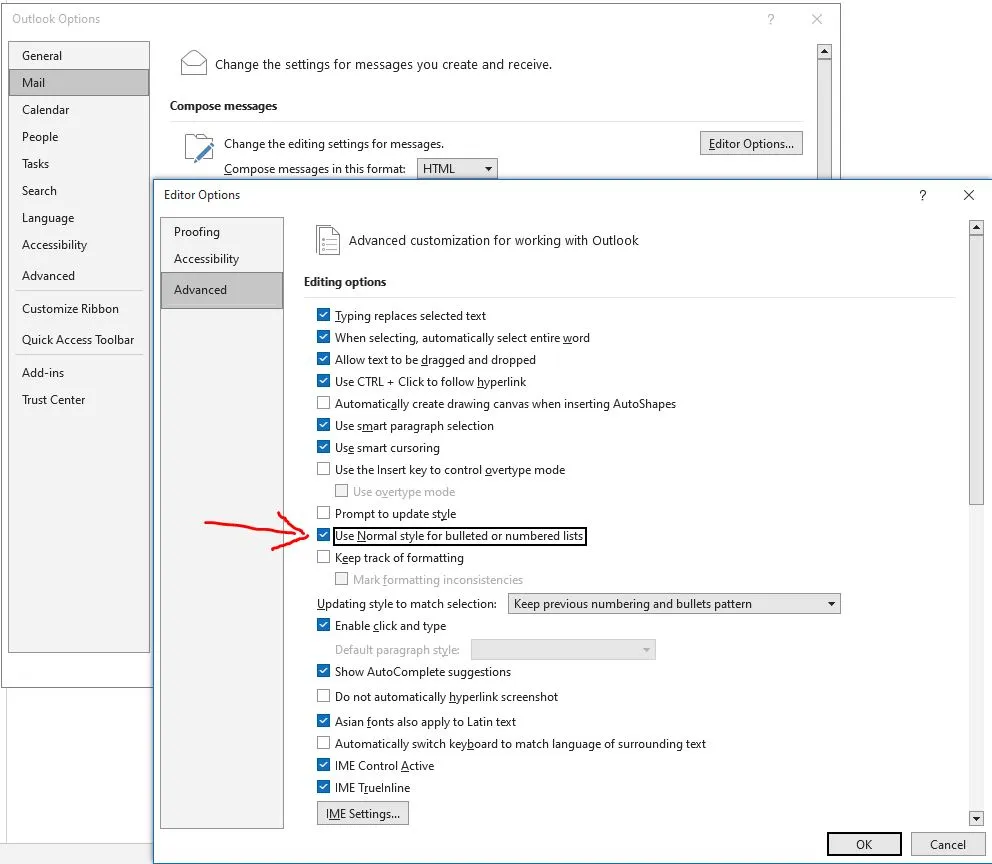
- Open Microsoft Outlook and click the File tab
- Select Options
- In the Outlook Options window, choose Mail
- Click Editor Options
- In the Editor Options window, select Advanced
- Ensure Use Normal style for bulleted or numbered lists is enabled
- Click OK to save your changes
Once this option is enabled, Outlook is more likely to preserve second-level and multi-level bullet formatting after emails are sent.
Why this happens in Microsoft Outlook
This issue occurs because the Outlook drafting editor and the sent message view do not always render list formatting in exactly the same way.
Common contributing factors include:
• Differences between HTML, Rich Text, and Plain Text email formats
• Outlook’s internal handling of multi-level list styles
• Content copied from other applications or documents
• Outlook editor settings that affect how lists are displayed after sending
Additional notes and limitations
Even with the correct settings, list formatting may still be influenced by factors such as the email format used, the recipient’s email client, and content pasted from other sources. Simplifying list structures can sometimes help mitigate these issues.
In business environments where Microsoft Outlook is connected to shared Microsoft 365 platforms, Exchange configuration, or centrally managed email policies, formatting issues can sometimes indicate broader configuration dependencies. Where email templates or shared communication standards are affected, structured IT support may be required to ensure consistency across users.
When to seek help
If this issue occurs frequently, affects shared templates, or causes confusion in business-critical emails across multiple users, it may be worth reviewing Outlook configuration more broadly within your Microsoft 365 environment.
Need help with something covered in this guide?
A guide can explain the issue and outline useful checks, but some situations need the actual device, account, service, website, network or supplier arrangement to be reviewed. Evening Computing can help review what is happening and advise on suitable next steps before changes are made.
Further Guidance and Support
This guide forms part of a broader layered security approach. For structured guidance on security and resilience planning, see our Security and Resilience page.
For information about practical implementation and ongoing support, you can review our IT services and local IT support coverage across London, Hertfordshire, and Essex.
Author
Elías Sánchez
IT Support Consultant
Evening Computing
This guide was prepared by Elías Sánchez with research and drafting assistance from AI tools. All technical content has been reviewed and adapted for clarity and accuracy.
Last reviewed
24 August 2026