
Understanding internet access in offices and public places
This guide explains how internet access works in offices hotels and public places including mobile hotspots and shared WiFi. It also outlines what to ask before connecting your devices and how to reduce risk when using public or shared networks.
What is a Hotspot?
A hotspot is a convenient way to share your mobile internet connection with other devices. By turning your phone into a hotspot, you create a private Wi-Fi network that allows laptops, tablets, and other gadgets to connect and access the internet using your phone’s data plan.
Hotspots are particularly useful when traveling, in places with limited Wi-Fi, or during network outages. They offer a secure alternative to public Wi-Fi, ensuring that only your devices are connected.
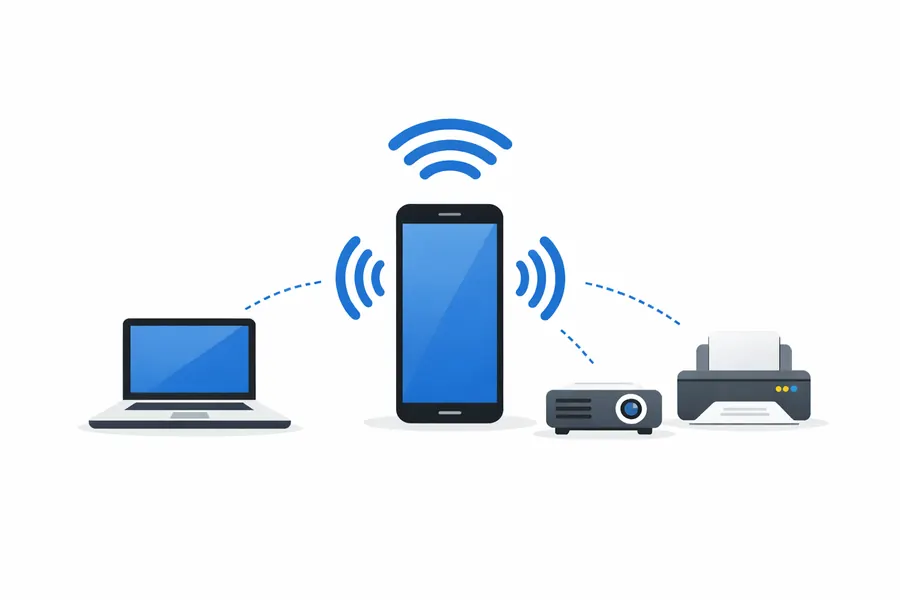
A mobile phone can share its internet connection with other devices.
A common example of using a mobile phone as a hotspot
In some situations, a laptop may already be playing online videos or accessing websites, even though it is not connected to the building’s WiFi. This usually means the internet connection is being provided by a mobile phone hotspot instead.
In this case, the phone is using its own mobile data connection and sharing it with the laptop and any other connected devices. This often happens when there is no WiFi available, or when the available wireless network cannot be accessed or its security is unknown.
In this situation, the phone acts as the internet source, and the other devices connect directly to it, in much the same way they would connect to a home WiFi router.
WiFi in buildings, offices, and public places
When you are in a building such as an office, school, library, café, or hotel, you cannot assume that everyone is using the WiFi provided by the venue. Some people may still be using their mobile phone to share its internet connection with their laptop or tablet, especially if they do not have access to the building’s wireless network.
If you want to use the WiFi provided by the venue, it is usually best to ask at reception or with a member of staff. They can tell you the name of the wireless network, often referred to as the network name or SSID, and the password needed to connect.
In many public places, after you enter the correct network and password, the first page that appears in your web browser is a terms of use page. This is normal. You are usually required to agree to the conditions of using the service before you can access the internet.
In some locations, particularly hotels and venues outside the UK, access to WiFi may be a paid service. In certain cases, usage may be limited by time or by data. This can become expensive if you watch videos or if your devices automatically upload photos or videos, in a similar way to how mobile data roaming works when travelling abroad.
Device isolation on shared WiFi networks
When you use WiFi in a building such as an office, school, library, or café, the wireless network is usually shared by many people. For security reasons, these networks often place each connected device into what is known as isolation mode.
This means that while your device can access the internet, it cannot directly communicate with other devices on the same WiFi. As a result, devices such as laptops, phones, and projectors may not be able to connect to each other locally, even though they appear to be connected to the same network. This is a normal and intentional security measure on guest or public WiFi networks.
Sometimes devices can still work together by using a management service located on the internet, often referred to as a cloud service. In this case, information is sent from one device up to the service on the internet, and then back down to the other device. The devices do not communicate directly with each other on the local network, which allows the isolation and security of the shared WiFi to remain in place.
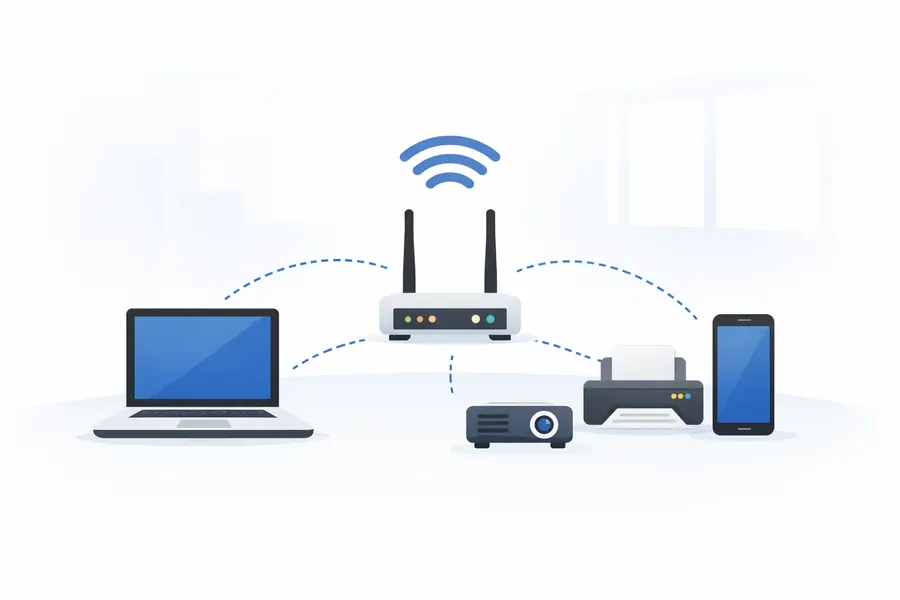
In many rooms, one Wi-Fi source is shared by several devices.
Essential Questions for Internet Access
Now that you understand how internet access works in different places, the following sections highlight common questions and considerations when connecting in shared environments.
Understanding Wi-Fi Terms
Wi-Fi Usage Policies
When connecting to a Wi-Fi network, it’s crucial to understand the terms and conditions that govern its use. These rules outline acceptable behaviours, data handling practices, and the provider’s responsibilities. By agreeing to these terms, users acknowledge the limitations of the service and the potential monitoring of network traffic. While these conditions help protect the provider, they also set boundaries for users, ensuring a fair and secure environment for all connected devices.
Risks of Public Wi-Fi
Dangers of Open Networks
Public Wi-Fi networks, such as those found in cafés, airports, libraries, and hotels, are designed for convenience rather than security. These networks are often shared by many users at the same time, which increases the risk of unauthorised access and data interception.
Because public Wi-Fi networks are not always managed to the same standard, users cannot assume that strong security protections are in place. In some cases, online activity may be monitored, and personal or sensitive information could be exposed if additional precautions are not taken. For this reason, it is best to avoid accessing sensitive accounts or carrying out financial transactions when connected to public Wi-Fi.
While public Wi-Fi can be useful, it should be treated with caution. Understanding that these networks are inherently less secure than private connections helps users make safer decisions about when and how they connect.
Enhancing Public Internet Safety
To reduce risk when using public internet access, it is sensible to apply additional security measures. Using a virtual private network, or VPN, can help protect your internet traffic by encrypting the data sent between your device and the internet. Keeping your devices up to date with the latest operating system and security updates also helps protect against known vulnerabilities.
A layered approach to security can offer better protection than relying on a single measure. This may include using a reputable security suite, such as
Norton 360
https://uk.norton.com/downloads#
Security suites like this can provide features such as protection against malicious websites, detection of unsafe downloads, and warnings about suspicious activity. While modern mobile phones and Apple devices include built in security features, these are designed to provide a baseline level of protection and do not cover all risks, particularly when using shared or public networks.
Some people believe that mobile phones or Apple devices do not need additional security software. In practice, threats such as phishing links, malicious websites, unsafe downloads, and compromised WiFi networks can affect any device, regardless of brand or operating system. Additional security tools can help identify and block these risks before they cause harm.
You may also benefit from using a protective DNS service, such as
NextDNS
https://my.nextdns.io/
A protective DNS service can block access to known malicious websites, phishing domains, and tracking services before your device connects to them. This type of protection works quietly in the background and can be particularly useful on public WiFi, where network level protections are often limited or unknown.
Alongside these measures, continue to use strong, unique passwords for your accounts and enable two factor authentication where available. You may also wish to disable file sharing and remain cautious about the websites you visit. Avoid entering sensitive information on unsecured sites, and be alert to suspicious links or unexpected downloads.
For users who want a higher level of account protection, especially for email and online services, you may also consider using hardware security keys such as the
YubiKey 5 NFC FIPS
https://www.yubico.com/gb/product/yubikey-5-fips-series/yubikey-5-nfc-fips/
Hardware security keys provide strong protection against account takeover and phishing attacks. They are more expensive than software based options but are considered one of the most robust forms of authentication at the time of writing.
If you use a Google email or Gmail account, you can also enrol in the
Google Advanced Protection Program
https://landing.google.com/advancedprotection/
This is a free service that offers enhanced protection for Google accounts by enforcing stronger security controls and reducing the risk of unauthorised access.
To summarise the differences between common types of internet connections:
Understanding Network Connections
In the realm of digital connectivity, knowing the distinctions between office networks, personal hotspots, and public Wi-Fi is crucial for ensuring secure and efficient internet use. Each type of connection offers unique benefits and potential risks that must be considered.
Office Networks vs. Personal Hotspots
Office networks are typically more secure and reliable, designed to support multiple users with robust security protocols. They are managed by IT professionals who ensure that data is protected and network performance is optimised. In contrast, personal hotspots offer a more private connection, using mobile data to create a secure network for personal use. While they provide flexibility and control, they are limited by mobile data caps and signal strength.
Navigating Public Wi-Fi
Public Wi-Fi, available in places like cafes and airports, prioritizes convenience over security. These networks are often shared by many users, which can expose devices to potential security threats. Understanding these differences is vital for making informed decisions about where and how to connect, especially when handling sensitive information. At Evening Computing, we emphasize the importance of choosing the right connection to safeguard your business operations.
Further Guidance and Support
This guide forms part of a broader layered security approach. For structured guidance on security and resilience planning, see our Security and Resilience page.
For information about practical implementation and ongoing support, you can review our IT services and local IT support coverage across London, Hertfordshire, and Essex.
Author
Elías Sánchez
IT Support Consultant
Evening Computing
London, United Kingdom
This guide was prepared by Elías Sánchez with research and drafting assistance from AI tools. All technical content has been reviewed and adapted for clarity and accuracy.
Last reviewed
15 March 2026