
How to Improve WhatsApp Security
This guide reflects WhatsApp settings available in February 2026. Features and menu locations may change over time. If a setting described below is not visible on your device, you may need to update the WhatsApp application through your app store.
WhatsApp messages are encrypted by default. However, encryption alone does not prevent account takeover, SIM swap attacks, or social engineering. Security depends on how your account, device, and mobile number are configured.
This guide explains practical steps that reduce exposure and limit risk.
Why WhatsApp Accounts Are Targeted
WhatsApp accounts are linked directly to phone numbers.
If an attacker gains control of a phone number through SIM swap fraud, social engineering, or interception of verification codes, they may attempt to activate the WhatsApp account on another device.
When this occurs, the legitimate user may see a message stating that the phone number has been registered on a new device.
Understanding this behaviour helps users recognise account takeover attempts quickly and respond before further access is gained.
If you ever see this message, we explain what it means and what actions to take in our guide:
Your Phone Number Was Registered with WhatsApp on a New Device
Enable Two-step verification
Go to Settings, then Account, then Two-step verification.
Set a six digit PIN and add a recovery email address.
This adds an additional layer of protection if someone attempts to register your number on another device.
Protect Your SIM Card
Many WhatsApp compromises happen through SIM swap attacks.
Contact your mobile provider and request:
SIM swap protection
Port out restrictions
Account level security PIN
If someone gains control of your number, they may attempt to reset messaging and banking accounts linked to it.
Enable End to End Encrypted Backups
WhatsApp chats are encrypted, but cloud backups are not encrypted unless you enable this feature.
Go to Settings, Chats, then Chat Backup.
Enable End to End Encrypted Backup and set a strong password stored securely.
Without this setting, a compromised cloud account may expose chat history.
Review WhatsApp Privacy Settings
Go to Settings, then Privacy.
Recommended stricter settings:
Last Seen and Online set to Nobody
Profile Photo set to My Contacts
About set to My Contacts
Groups set to My Contacts except
Silence Unknown Callers enabled
These settings reduce exposure to spam and unsolicited contact.
Use Chat Lock for Sensitive Conversations
WhatsApp includes a feature called Chat Lock which allows individual conversations to be protected using biometric authentication such as fingerprint or Face ID.
When Chat Lock is enabled:
• The selected conversation moves to a protected folder
• Notifications may hide message previews
• Access requires biometric verification
This feature is different from locking the WhatsApp application itself.
If the app is protected only with a device lock, anyone with access to the unlocked phone could still open individual conversations.
Chat Lock provides an additional layer of privacy by protecting specific chats even when the device is already unlocked.
Hidden chats can also be placed inside a Locked Chats folder, which keeps sensitive conversations separate from the main chat list.
Use Strict Account Settings
WhatsApp has introduced a feature called Strict Account Settings to reduce exposure to targeted attacks.
When enabled, it applies more restrictive protections designed to reduce the risk of unwanted interactions.
These controls may include:
• Blocking certain interactions from unknown contacts
• Restricting group invitations
• Silencing unknown callers
• Enforcing stronger privacy defaults
While these settings may slightly limit some behaviour within the app, they significantly reduce the attack surface for social engineering and unwanted contact attempts.
If available on your device, this setting can be enabled by navigating to:
Settings → Privacy → Advanced → Strict Account Settings
Disable Automatic Media Downloads
Go to Settings, then Storage and Data.
Disable automatic downloads for photos, videos, and documents.
Malicious files are sometimes distributed through messaging platforms. Manual download reduces exposure.
Review Linked Devices
Go to Settings, then Linked Devices.
Remove any session you do not recognise. Avoid leaving WhatsApp Web open on shared or public computers.
If you ever notice unfamiliar sessions listed in Linked Devices, it may indicate that someone has accessed your WhatsApp account through WhatsApp Web or another linked device.
Some account compromises occur when a WhatsApp Web session is opened without the user’s knowledge.
We explain how to review and remove suspicious sessions in our guide:
How to Check if Someone Is Using WhatsApp Web on Your Account
Use App Lock and Device Security
Enable biometric app lock within WhatsApp.
Also ensure:
Strong device unlock PIN
Automatic screen lock
Operating system updates installed promptly
App security depends on overall device security.
Separate Business and Personal Use
If WhatsApp is used for business communication:
Use a dedicated number where possible
Avoid reusing the number for financial authentication
Limit unnecessary public exposure
Separation reduces overall risk.
Be Aware of Social Engineering
Most compromises occur through deception rather than technical exploits.
Examples include:
Impersonation messages
Fake delivery notifications
Investment scams
Messages requesting urgent payments
Always verify sensitive requests through a separate communication channel.
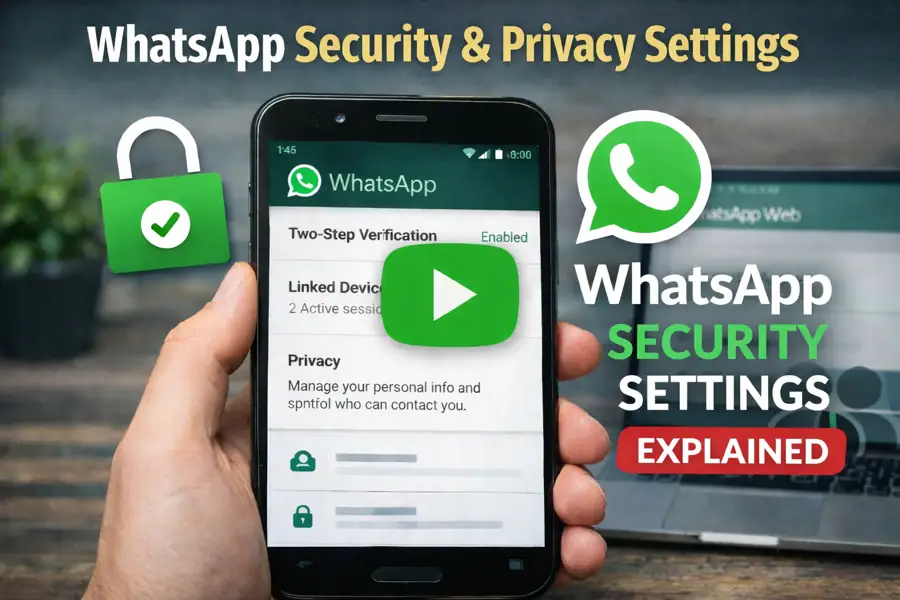
Visual Overview: WhatsApp Security Settings
This short video provides a visual overview of several WhatsApp security settings discussed in this guide, including privacy controls, two step verification, and linked device sessions.
The guide above contains the full written explanation and recommended configuration steps.
Related WhatsApp Security Topics
Several situations that resemble account compromise are explained in more detail in the following guides:
How to Check if Someone Is Using WhatsApp Web on Your Account
How to Check if Your WhatsApp Account Has Been Hacked
Phone Number Was Registered With WhatsApp on a New Device
WhatsApp Verification Code Scam Explained
Why Someone Can Add You to WhatsApp Groups Without Permission
Related Guidance
If your concern extends beyond messaging security, see our guide on protecting mobile phones and sensitive data if stolen.
Summary
WhatsApp security is based on layered protection. Encryption protects message content, but account configuration, SIM protection, and device security are equally important.
Reviewing settings periodically helps ensure protection remains aligned with current app capabilities.
No single setting is sufficient on its own.
Further Guidance and Support
This guide forms part of a broader layered security approach. For structured guidance on security and resilience planning, see our Security and Resilience page.
For information about practical implementation and ongoing support, you can review our IT services and local IT support coverage across London, Hertfordshire, and Essex.
Author
Elías Sánchez
IT Support Consultant
Evening Computing
London, United Kingdom
This guide was prepared by Elías Sánchez with research and drafting assistance from AI tools. All technical content has been reviewed and adapted for clarity and accuracy.
Last reviewed
15 March 2026