
WordPress security headers explained. A safe setup guide
This page explains WordPress security headers, what they protect against, which headers are generally safe to enable, and how to check them in your browser.
Scope, assumptions, and important notes
This guide focuses on browser-level security using HTTP response headers and is written for website owners and administrators running WordPress.
The examples and explanations assume a typical WordPress site hosted on Apache. If your site is hosted on a managed platform or behind a CDN that sets headers automatically, some configuration steps may already be handled for you.
This page is intentionally explanatory rather than a copy-and-paste hardening checklist. Security headers affect how browsers behave, and the correct setup depends on your hosting environment, WordPress configuration, and any services in front of your site, such as Cloudflare.
Use this guide to understand what these headers do, why the settings shown here are generally safe for most WordPress sites, and how to verify that they are active using your browser’s developer tools.
Why security headers exist in modern browsers
Modern web browsers include a number of security features designed to reduce common attack techniques such as clickjacking, content-type confusion, and unintended access to browser features.
Security headers are instructions sent by a website to the browser telling it how to handle certain situations. They do not scan for malware, block hackers, or replace server-side security. They simply reduce risk at the browser level.
What security headers do and do not protect against
They help reduce certain classes of browser-based attacks
They do not stop server breaches or plugin vulnerabilities
They do not replace firewalls, patching, or good passwords
They do not block normal navigation, downloads, or links
They are enforced by the visitor’s browser, not your server
Why this matters even for a simple website
If your website is mostly informational, it is reasonable to ask why browser security headers matter at all.
Security headers do not protect your server. They protect your visitors’ browsers while they interact with your website.
This means they reduce entire classes of abuse that do not require hacking your site, stealing passwords, or breaking into your hosting account.
Examples include preventing your pages from being invisibly embedded inside other websites, stopping browsers from guessing file types incorrectly, reducing accidental data leakage to third parties, and disabling browser features your site does not use.
These protections are silent. Visitors do not see warnings or prompts. Modern browsers enforce them automatically.
For a website owner, security headers are a low effort, low risk improvement that complements HTTPS, Cloudflare, and WordPress security plugins rather than replacing them.
Even if a website does not handle logins, payments, or private data, it can still be abused at the browser level.
For example:
• A malicious site could attempt to invisibly embed your page inside a frame to mislead users
• A browser could incorrectly interpret a downloaded file as executable
• Visitors could unintentionally leak full page URLs to third party services
• Browser features your site does not use could still be exposed to abuse
Security headers quietly reduce these risks without changing how your website looks or behaves.
Most visitors will never notice them. That is exactly the point.
Security headers covered in this guide
X-Frame-Options
X-Frame-Options helps prevent clickjacking attacks by stopping other websites from embedding your pages inside frames or iframes.
In practice, this means your site cannot be silently overlaid or visually manipulated inside another page.
It does not affect:
External links
File downloads
Embedded YouTube videos
Cloudflare or Wordfence scripts
X-Content-Type-Options
X-Content-Type-Options tells the browser not to guess or reinterpret file types.
This reduces the risk of certain browser-based attacks where content is treated as executable when it should not be.
It does not affect:
Normal page rendering
Downloads hosted elsewhere
File handling on other websites
Referrer-Policy
Referrer-Policy controls how much information your browser shares when a visitor clicks a link to another website.
With a sensible policy in place, external sites still know your domain sent the visitor, but do not receive the full page URL.
This improves privacy without breaking:
External links
Analytics
Embedded services
Strict-Transport-Security
Strict-Transport-Security instructs the browser to always use HTTPS for your site once it has been visited securely.
This reduces the risk of downgrade or interception attacks.
HSTS is usually best enforced at the CDN or hosting layer. Incorrect configuration can affect subdomains, which is why it should be applied deliberately.
Permissions-Policy
Permissions-Policy controls whether a website is allowed to request access to certain sensitive browser features.
These features include:
Camera
Microphone
Geolocation
Browser-based payment APIs
This does not affect analytics or IP-based location reporting.
For example:
Google Analytics and Cloudflare analytics determine location using IP address data
Server logs can still record country or city
External services continue to work normally
The geolocation permission only applies if a website actively runs JavaScript that asks the browser for the user’s precise physical location and triggers a permission prompt.
If your site does not use features such as video capture, voice input, location tracking, or browser-native payments, disabling these APIs reduces attack surface without impacting functionality.
Compatibility with WordPress, Cloudflare, and third-party services
The headers described in this guide do not interfere with:
External links
File downloads
Embedded YouTube videos
Cloudflare security scripts
Wordfence protection
They work by instructing the browser, not by blocking resources.
How to add security headers safely using .htaccess (WordPress)
Before making any changes, always create a backup of your .htaccess file.
The .htaccess file controls how your web server behaves. A backup allows you to restore the site immediately if a mistake is made.
For most WordPress sites running on Apache, the .htaccess file is located in the root directory of the website, alongside folders such as wp-admin, wp-content, and wp-includes.
Do not place custom security headers inside the “BEGIN WordPress” and “END WordPress” block. WordPress may overwrite that section automatically.
Instead, place custom headers above the “BEGIN WordPress” line.
If you are using Cloudflare, some headers may already be set at the edge. Adding them at the origin ensures consistent behaviour if the site is accessed directly.
After saving the file, reload the website and verify the headers using your browser’s developer tools.
Where the .htaccess file is located
The .htaccess file you need to edit is located in the root directory of your WordPress installation.
This is the same directory that contains:
• wp-config.php
• wp-admin/
• wp-content/
• wp-includes/
On many hosting providers, including GoDaddy, this directory is commonly called public_html.
Where you should add security headers
Custom security headers should be placed above the # BEGIN WordPress line.
This ensures:
• WordPress updates do not remove them
• The headers apply to all requests
• Apache processes them early
• Future theme or plugin changes do not interfere
Always create a backup of your .htaccess file before making changes.
If something goes wrong, restoring the backup will immediately recover the site.
Example .htaccess layout with security headers
# BEGIN Security Headers
# These headers are enforced by the visitor’s browser.
# They do not block navigation, downloads, or scripts.
# They reduce browser-level attack surface.
<IfModule mod_headers.c>
# Prevents clickjacking by stopping other sites from embedding your pages
Header always set X-Frame-Options “SAMEORIGIN”
# Prevents browsers from guessing incorrect content types
Header always set X-Content-Type-Options “nosniff”
# Limits referrer information sent to external sites
Header always set Referrer-Policy “strict-origin-when-cross-origin”
# Disables unused browser features
Header always set Permissions-Policy “camera=(), microphone=(), geolocation=(), payment=()”
</IfModule>
# END Security Headers
# BEGIN WordPress
What you will already see in .htaccess
A typical WordPress .htaccess file already contains rules managed by WordPress itself.
A simplified example looks like this:
# BEGIN WordPress
<IfModule mod_rewrite.c>
RewriteEngine On
RewriteBase /
RewriteRule ^index\.php$ – [L]
RewriteCond %{REQUEST_FILENAME} !-f
RewriteCond %{REQUEST_FILENAME} !-d
RewriteRule . /index.php [L]
</IfModule>
# END WordPress
⚠️ Important
WordPress may automatically overwrite anything placed between
# BEGIN WordPress and # END WordPress.
For this reason, custom security headers must never be added inside this block.
How to verify security headers correctly in Chrome
Open the site in Google Chrome.
Right click anywhere on the page and select Inspect.
Open the Network tab in the developer tools.
Important:
Ensure all Network filters are cleared.
Chrome can retain filters from previous sessions, including Incognito windows.
If filters are active, the main page request may be hidden.
Reload the page while the Network tab is open.
Click the request that:
• Has Type: document
• Uses your own domain name
• Looks like /, /contact/, or /it-support/
Do not click requests for:
• YouTube
• Cloudflare
• Fonts
• Scripts
• Images
With the correct request selected, scroll down to Response Headers.
If you see headers such as:
• X-Frame-Options
• X-Content-Type-Options
• Referrer-Policy
• Permissions-Policy
• Strict-Transport-Security
then the headers are active and enforced by the browser.
Important note:
If you do not see your site listed in the Network tab, check that no filters are active.
Chrome can retain Network filters across sessions, including Incognito windows. If filters are active, the main document request may be hidden, making it appear as though headers are missing.
Always clear all Network filters before reloading the page and checking response headers.
Important note about PageSpeed Insights and Lighthouse
PageSpeed Insights and Lighthouse are not security enforcement tools. They perform heuristic checks based on what they expect to see, not a full runtime evaluation of browser behaviour.
Security headers may be:
Applied at CDN or edge level
Injected conditionally
Enforced by the browser but not explicitly surfaced by Lighthouse
For this reason, PageSpeed Insights may not list every security header even when they are correctly implemented and actively enforced.
The authoritative way to verify security headers is always the browser’s developer tools.
If a header appears in the Response Headers of the main document request in Chrome DevTools, it is active and enforced by the browser, regardless of whether PageSpeed reports it explicitly.
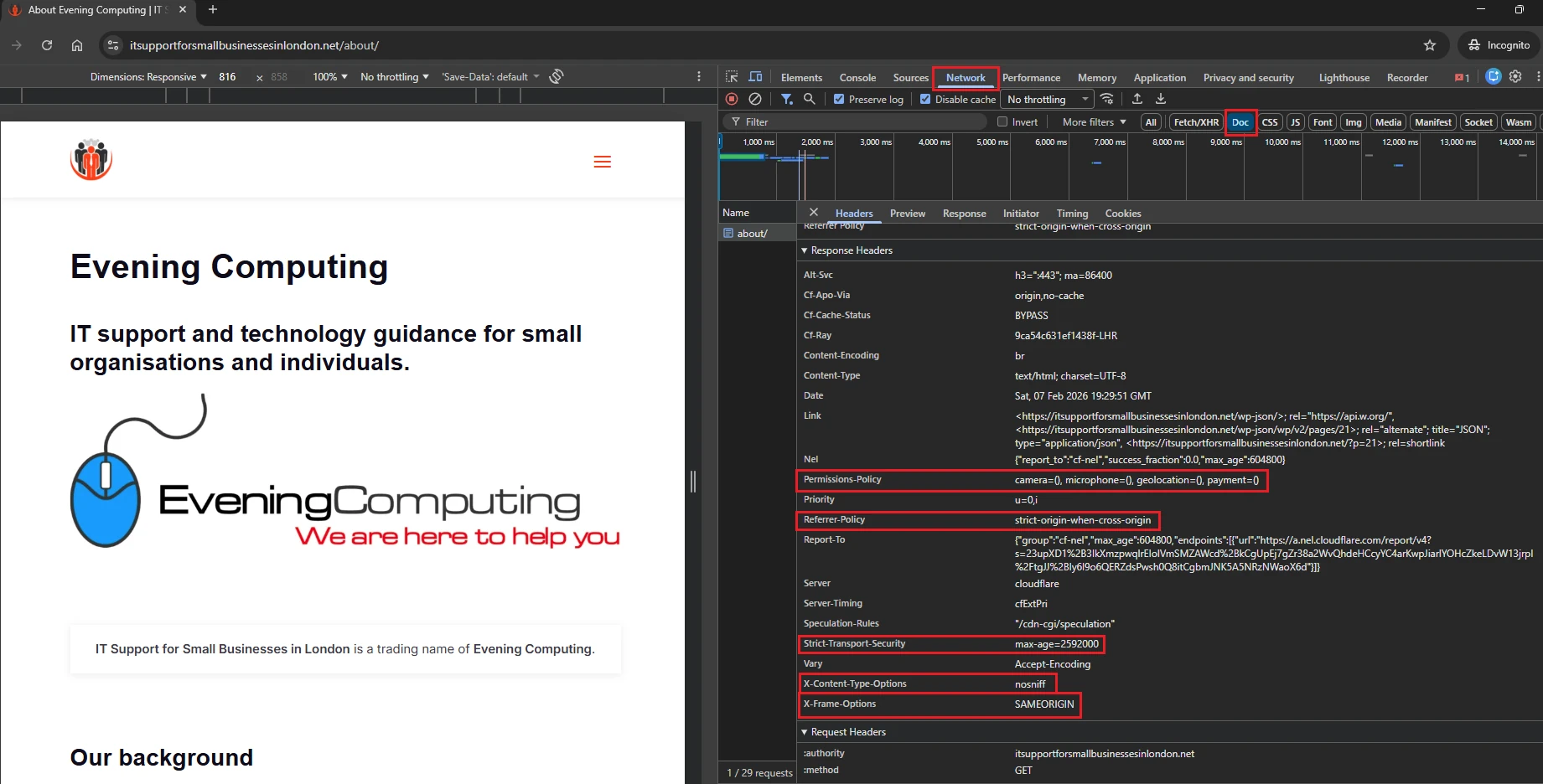
The image above shows what a correctly configured security headers response looks like in Chrome DevTools.
If you see these headers in the Response Headers of the main document request, the browser is enforcing them correctly.
Will these headers break my website?
These headers are widely used on modern websites and are safe for most WordPress setups. They do not block normal navigation, external embeds, analytics, or file downloads.
They simply instruct the browser how to handle content more safely.
Always test after applying changes and take a backup before modifying your site configuration.
Related WordPress Security Guides
Final notes
Security headers are one layer of a wider security approach. They are low-risk, low-impact improvements that make sense when applied carefully and verified properly.
They should be used alongside regular updates, strong authentication, backups, and sensible hosting and firewall controls.
Further Guidance and Support
This guide forms part of a broader layered security approach. For structured guidance on security and resilience planning, see our Security and Resilience page.
For information about practical implementation and ongoing support, you can review our IT services and local IT support coverage across London, Hertfordshire, and Essex.
Author
Elías Sánchez
IT Support Consultant
Evening Computing
London, United Kingdom
This guide was prepared by Elías Sánchez with research and drafting assistance from AI tools. All technical content has been reviewed and adapted for clarity and accuracy.
Last reviewed
15 March 2026