
How YubiKeys work and how to configure them in Intune and Entra ID
YubiKeys are often mentioned alongside passkeys, phishing resistant sign in, Microsoft Intune, and Microsoft Entra ID, but those terms do not all mean the same thing. This can make planning a rollout more difficult than it first appears.
This guide explains what a YubiKey is, how it relates to passkeys, and how it fits into Microsoft Entra ID. It also explains where Intune sits in the wider picture, and what needs to be decided before an organisation starts rolling YubiKeys out to staff.
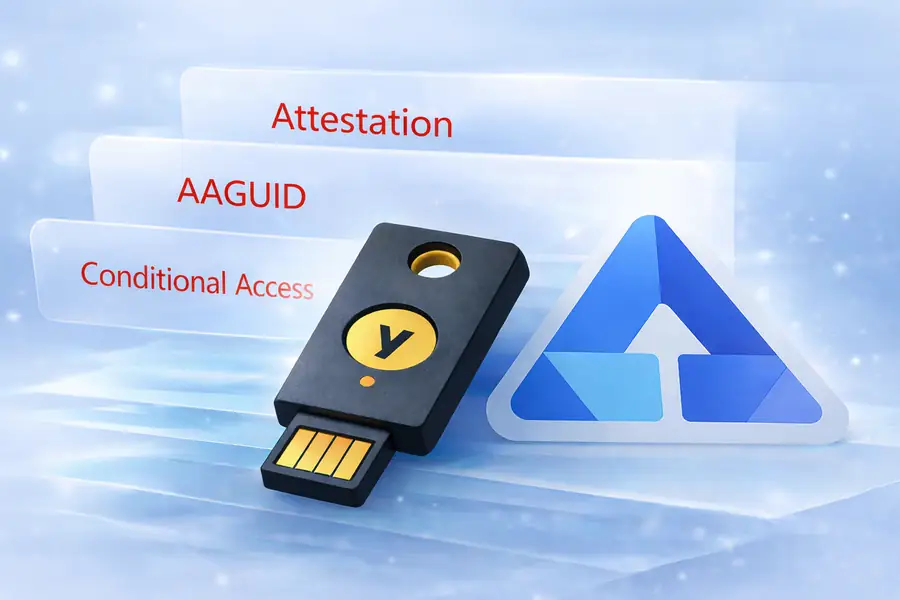
The focus is on the decisions that shape a rollout, including attestation, AAGUID restrictions, Conditional Access authentication strengths, and how different authentication methods are controlled.
The aim is to clarify how these components work together so that planning is based on understanding rather than assumptions.
Current public guidance now recommends passkeys over passwords wherever passkeys are available. This page takes the narrower organisational question: when passkeys are being adopted, when is a hardware backed and more tightly controlled approach such as YubiKeys the better fit?
In this guide, Intune is part of the wider Microsoft management picture, but most of the passkey and security key controls discussed here sit in Microsoft Entra ID. Microsoft’s current passkey guidance is built around passkey profiles, passkey type, attestation enforcement, key restrictions, target groups, and Conditional Access authentication strengths.
Browse this guide
Use the links below to jump to the sections most relevant to your question.
- What a YubiKey is
- Why this guide uses YubiKeys in its examples
- How YubiKeys relate to passkeys
- Where Intune and Entra ID fit
- How the Microsoft configuration model works
- What this does not mean
- Device bound and synced passkeys
- Why some organisations prefer device bound authenticators
- Device bound credentials and device bound sessions are related but different
- What Enforce attestation means
- What an AAGUID is
- The difference between attestation and AAGUID restrictions
- How Conditional Access authentication strengths fit in
- Local Windows accounts are a separate path
- What to decide before rollout
- Practical limits and compatibility points
- Why a backup key should be part of the plan
- FAQ
- Need help with something covered in this guide?
- Further Guidance and Support
What a YubiKey is
A YubiKey is a physical security key. Depending on the model, firmware, and protocol in use, it can be used as a second factor, as a place to store device bound passkeys, or as both. That distinction matters because a YubiKey is not itself the same thing as a passkey. A passkey is the credential. The YubiKey is the physical authenticator that may help protect or store that credential.
If the difference between passkeys and security keys feels unclear, it is worth reading our related guide on Are passkeys and security keys the same thing? because the same hardware key may be described differently depending on whether someone is focusing on the device, the credential, or the sign in method.
Why this page uses YubiKeys in its examples
We use YubiKeys in the examples on this page because they are the hardware security keys we have used directly when preparing and reviewing this guidance.
Some of the practical observations on this page are based on direct use of our own YubiKey devices, including the models, firmware, and application settings in use during testing. Behaviour may differ between security key vendors, between YubiKey models, between firmware versions, and between platforms or applications.
Other hardware security key vendors are also available, and the same general principles may apply depending on the standards and features supported by the device.
If you want a more detailed guide on how YubiKeys fit into Microsoft Intune and Microsoft Entra ID, including attestation, AAGUID restrictions, Conditional Access, and rollout planning, see our guide on How YubiKeys work and how to configure them in Intune and Entra ID.
How YubiKeys relate to passkeys
A passkey is a sign in credential based on public key cryptography. The private key stays on the device or authenticator and is used only after local approval such as a PIN, biometric check, or physical touch. The website or service stores the public key and uses it to verify the response to a fresh challenge during sign in.
Some newer FIDO2 capable YubiKeys can store device bound passkeys. Older hardware security keys may still be useful for stronger authentication, but they should not automatically be described as passkey devices. Saying that all security keys are passkeys would be inaccurate. Saying that some FIDO2 capable security keys can store passkeys is more precise.
Where Intune and Entra ID fit
In practice, most of the passkey and security key policy decisions discussed in this guide are made in Microsoft Entra ID rather than in Intune. Microsoft’s current configuration model is based on passkey profiles. Those profiles can be applied to different target groups and can define requirements for passkey type, attestation, and key restrictions.
Intune may help manage the Windows device experience, but the main decisions about which authenticators are allowed and how they are governed sit in Entra.
This means a YubiKey rollout is not just a matter of buying keys and handing them out. It involves deciding which users should receive hardware keys, whether passkeys should be device bound only, whether synced passkeys should be allowed, whether attestation should be enforced, and whether specific authenticator models or providers should be restricted by AAGUID.
Even with Intune and Microsoft Entra configured for stronger sign in, you cannot fully remove every password path in every Windows scenario just through those controls alone. Microsoft states that Conditional Access authentication strengths are evaluated only after the initial authentication, so they do not restrict the user’s first sign in method. Microsoft also states that Windows Passwordless Experience is intended to guide users away from passwords rather than completely prevent password use, and that it does not affect the initial sign in experience, local accounts, or the Other user password path on the lock screen.
These controls can strongly steer and restrict authentication, but they do not make every Windows password path disappear in every scenario.
How the Microsoft configuration model works
Microsoft’s current guide describes this process in a clear order.
First, passkey profiles are enabled in the Microsoft Entra admin centre.
Second, a passkey profile is created.
Third, the profile is applied to targeted groups.
Fourth, synced passkeys may be enabled if required.
Fifth, Conditional Access authentication strengths can be used to require passkeys for sensitive resources.
Microsoft also explains that passkey profiles allow more than a single tenant wide setting. Instead, different requirements can be applied to different user groups, such as administrators, executives, or wider staff groups.
What this does not mean
Enabling passkey profiles, applying them to groups, and using Conditional Access authentication strengths does not mean every password path disappears from every Windows sign in scenario. It means the organisation is shaping which passkey methods are allowed, how they are registered, and where stronger authentication is required for access to resources.
That is an important difference, because Windows sign in behaviour, cloud resource access, and fallback options are related but not identical.
Device bound and synced passkeys
Microsoft Entra ID currently supports both synced passkeys and device bound passkeys stored on FIDO2 security keys and in Microsoft Authenticator. That distinction is important because convenience and control are not the same thing.
Synced passkeys are designed to move across authorised devices through a cloud based ecosystem. They can make day to day use and some recovery scenarios easier. Device bound passkeys stay tied to a specific registered device or hardware authenticator. That usually gives stronger control, but it can make enrolment, replacement, and recovery less convenient.
For organisations considering YubiKeys, this usually means deciding whether physical control is more important than cloud convenience for the users in scope.
Why some organisations prefer device bound authenticators
Some organisations prefer device bound passkeys or hardware security keys for higher assurance users because the credential remains tied more closely to one registered authenticator.
That preference is not based on the idea that synced passkeys have no value. Synced passkeys can improve usability and recovery, and they may still represent a significant improvement over passwords for many users. The difference is that a synced model usually depends on a wider account ecosystem and recovery path, while a device bound model keeps control more tightly linked to a specific hardware key or registered device.
In practical terms, this is one reason a rollout should not begin with the assumption that every passkey model offers the same balance of convenience and control. Executive accounts, administrative roles, and higher sensitivity users may justify tighter restrictions, device bound authenticators, stronger attestation requirements, or specific AAGUID controls, while wider staff groups may use a more flexible model if that better suits operational reality.
The important point is that stronger sign in is not only about adopting passkeys in general. It is also about deciding which passkey model is appropriate for the users, devices, and resources in scope.
Device bound passkeys and hardware security keys help protect the sign in process by keeping the credential tied to a specific authenticator.
Device Bound Session Credentials address a different stage: the signed in browser session after authentication has already happened. Google explains that DBSC binds authentication sessions to a specific device using hardware backed security, so that stolen cookies quickly become useless away from that device.
The two ideas are related because both reduce the value of something being copied away from the trusted device. However, they are not the same control. A YubiKey or FIDO2 passkey helps prove the user at sign in. DBSC helps protect the session cookie after sign in where the browser and website support it.
For business planning, this reinforces the same wider point: authentication, session protection, device security and recovery design should be reviewed together.
Google Workspace’s move to make DBSC a general availability protection reinforces this distinction. Hardware security keys and device bound passkeys protect the credential and sign in process, while DBSC protects supported browser sessions after sign in. They are related controls, but they should not be described as the same thing.
What Enforce attestation means
Enforce attestation means Microsoft Entra ID requires the authenticator to prove what it is during registration. Microsoft says that if attestation is enforced, Entra ID can verify the authenticator’s make and model against trusted metadata. That helps confirm that the passkey is genuine and comes from the stated vendor.
Microsoft also states that if Enforce attestation is set to No, Entra ID cannot guarantee any attribute about a passkey, including whether it is synced or device bound. That is why this setting matters so much in higher assurance environments.
There is an important limitation. Microsoft says attestation enforcement governs whether a passkey is allowed only during registration. Users who registered a passkey without attestation earlier are not blocked from sign in if Enforce attestation is turned on later.
What AAGUID restrictions mean
What an AAGUID is
An AAGUID is an identifier used to distinguish a specific type of passkey authenticator, such as a particular make and model.
Microsoft explains that each passkey vendor provides an Authenticator Attestation GUID, or AAGUID, during registration. It is a 128 bit identifier that indicates the key type, such as the make and model. Microsoft also notes that passkey providers on desktop and mobile devices are expected to provide an AAGUID during registration.
In practical terms, the AAGUID helps Microsoft Entra ID tell one authenticator type from another. That matters when an organisation wants to allow only certain devices, or block specific devices, as part of a passkey profile.
Microsoft says Enforce key restrictions should be set to Yes only when the organisation wants to allow or disallow certain security key models or passkey providers identified by their AAGUID. Microsoft also warns that key restrictions affect both registration and authentication. If an AAGUID that was previously allowed is removed later, users who registered that method can lose the ability to sign in with it.
The difference between attestation and AAGUID restrictions
These two controls are related, but they are not the same.
Attestation is about requiring proof of what the authenticator is during registration.
AAGUID restrictions are about allowing or blocking specific models or providers by identifier.
Microsoft also makes an important distinction in behaviour. Attestation affects registration only. Key restrictions affect both registration and authentication. Microsoft warns that if an AAGUID is later removed from the allowed set, users who previously registered that method may no longer be able to use it for sign in.
In simple terms, attestation asks whether the authenticator can prove what it is. AAGUID restriction asks whether this is one of the authenticators the organisation wants to allow.
In practical terms, that means attestation helps prove what is being registered, while AAGUID restrictions can later determine whether that authenticator is still allowed to be used at all.
How Conditional Access authentication strengths fit in
Microsoft allows passkey sign in to be enforced for sensitive resources through Conditional Access authentication strengths. It also allows a custom authentication strength to be created for Passkeys (FIDO2), with an optional Add AAGUID step if access should be limited to a specific security key model or passkey provider.
That means an organisation can use one control layer in the passkey profile and another in Conditional Access. A passkey profile shapes registration and the general policy model. A custom authentication strength can then be used to require a tighter method for specific sensitive resources or user journeys.
Local Windows accounts are a separate path
Local Windows account protection is a separate route from Microsoft Entra passwordless sign in. If a device is using a plain local Windows account, that is not the same model as a Microsoft Entra managed work sign in.
In Yubico’s own guidance, local account protection uses Yubico Login for Windows rather than the Microsoft Entra passkey profile model. For local Windows accounts, this is a separate Yubico software path rather than a native Microsoft Entra or Intune sign in model. Yubico also states that this applies to local Windows accounts only, not to Microsoft Entra ID managed accounts, Active Directory managed accounts, or Microsoft accounts.
That distinction matters because readers sometimes assume a YubiKey rollout in Entra can be applied in the same way to local Windows accounts. It cannot. Local account protection has its own software path, compatibility limits, recovery considerations, and sign in behaviour.
What to decide before rollout
A YubiKey rollout should be treated as a policy and operations project, not just a setup exercise.
Before rollout, the organisation should decide:
Who actually needs a hardware security key.
Whether synced passkeys will be allowed at all.
Whether privileged users should be restricted to device bound authenticators.
Whether attestation will be enforced.
Whether AAGUID restrictions will be used.
Whether access to particular sensitive resources should require a custom authentication strength.
How backup authenticators will be handled.
What the recovery path will be if a key is lost, damaged, or unavailable.
One more decision should be made explicitly at the start: whether the organisation is simply trying to move away from passwords in general, or whether it requires the tighter control of device bound authenticators for specific users and resources. That distinction affects policy, user experience, recovery design, and the need for backup keys.
Practical limits and compatibility points
YubiKeys do not behave like a single unlimited storage container for every authentication method. Yubico explains that account capacity depends on the protocol in use.
For YubiKey 5 Series firmware 5.7 and later, the FIDO2 application can hold up to 100 discoverable credentials, also described as hardware bound passkeys. For firmware 5.0 to 5.6, the limit is up to 25 discoverable credentials. Yubico also states that FIDO U2F can be registered with an unlimited number of services.
Yubico further states that the OATH application can hold up to 64 OATH TOTP credentials on firmware 5.7 and later, while older 5 Series firmware 5.0 to 5.6 supports up to 32.
This matters because some people ask how many accounts one YubiKey can support as though there is one simple answer. The real answer depends on whether the service is using FIDO2 passkeys, U2F, TOTP, PIV, or another protocol.
For local account scenarios, Yubico Login for Windows is a separate Yubico software path for local accounts on supported Windows systems such as Windows 11. Yubico states that it requires x86 architecture and does not support Microsoft Entra ID managed accounts, Active Directory managed accounts, Microsoft accounts, or Windows on ARM. Yubico also explains that it modifies only the standard username and password flow, which means other sign in options may still need to be reviewed and restricted where appropriate. Windows Hello, picture password, or other sign in methods may still need to be disabled where appropriate, otherwise the YubiKey requirement may be bypassed.
Backup keys, recovery codes, and full disk encryption should also be part of the plan rather than afterthoughts, as we explain in our page What is layered security and why does it matter.
Why a backup key should be part of the plan
A hardware key rollout should not assume that one key is enough. Device bound credentials improve control, but they also make access depend more directly on the registered authenticator. If one key is lost or unavailable and there is no backup plan, recovery can become much harder.
That is one of the practical trade offs between synced passkeys and hardware bound credentials. Synced passkeys may make recovery easier through another authorised device. Hardware security key only sign in depends more heavily on having the registered key or a backup key available.
This matters even more when device bound passkeys or physical hardware keys are part of the design, because access may depend on the continued availability of the registered authenticator. A rollout should therefore decide in advance how backup keys, replacement, revocation, and recovery will work.
This also helps explain why broad public support for passkeys does not remove the need for more careful rollout design in business settings. Sync based recovery and hardware key recovery are not the same thing, so recovery, revocation, and replacement should be defined before deployment rather than after the first lost key.
FAQ
What is a YubiKey?
A YubiKey is a physical security key used for stronger sign in. Depending on the model, firmware, and protocol, it may be used as a second factor, as a place to store device bound passkeys, or as both.
How does a YubiKey work?
With passkey based sign in, the service sends a fresh challenge, the authenticator answers that challenge using the private key stored on it, and the service checks the answer using the public key already on record. The private key stays on the authenticator and is not handed over to the service.
What is the difference between a YubiKey and a passkey?
A passkey is a sign in credential. A YubiKey is a physical security key that may protect or store that credential. Some YubiKeys can store passkeys, but not all security keys can do that.
Can a YubiKey store passkeys?
Yes, some FIDO2 capable YubiKeys can store device bound passkeys. Yubico says YubiKey 5 Series firmware 5.7 and later can hold up to 100 discoverable credentials, while firmware 5.0 to 5.6 can hold up to 25.
Should a business use YubiKeys or synced passkeys?
That depends on the risk level and operational needs. Synced passkeys usually offer more convenience and easier recovery. Device bound credentials on a hardware key usually offer tighter physical control and are often more suitable where assurance matters more than convenience.
Do current passkey recommendations remove the need for YubiKeys in business?
No. General passkey guidance supports moving away from passwords where possible, but organisations may still choose YubiKeys or other hardware backed authenticators for higher assurance users, tighter physical control, device bound credentials, or more restricted policy models.
When are YubiKeys a better fit than synced passkeys?
They are usually a better fit where the organisation wants stronger physical control, device bound credentials, and tighter policy restrictions for privileged, sensitive, or higher risk roles.
What does Enforce attestation mean in Entra ID?
It means attestation is required during registration so Microsoft Entra ID can verify the authenticator’s make and model against trusted metadata. Microsoft also says that if Enforce attestation is not used, Entra ID cannot guarantee whether the passkey is synced or device bound.
This is one reason attestation should be treated as an early rollout design choice rather than something expected to clean up an existing estate automatically later.
What is the difference between attestation and AAGUID restrictions?
Attestation is about proving what the authenticator is during registration. AAGUID restrictions are about allowing or blocking specific models or providers by identifier. Microsoft states that attestation affects registration only, while key restrictions affect both registration and authentication.
How do I allow only approved YubiKey models in Entra ID?
Microsoft says Enforce key restrictions should be set to Yes when the organisation wants to allow or disallow certain security key models or passkey providers identified by AAGUID. Microsoft also allows a custom Conditional Access authentication strength to be created with a specific AAGUID added under advanced options.
Can one YubiKey be used for multiple accounts?
Yes, often for a very large number of accounts, but the real limit depends on the protocol in use. Yubico states that FIDO U2F can be registered with an unlimited number of services, while the number of stored FIDO2 discoverable credentials depends on firmware.
What should be decided before rolling out YubiKeys to staff?
Before rollout, decide which users need hardware keys, whether synced passkeys will be allowed, whether attestation will be enforced, whether AAGUID restrictions will be used, and how backup keys and recovery will be handled. Microsoft’s passkey profile model is built around those decisions.
What are common mistakes in a YubiKey rollout?
Common mistakes include treating the project as only a setup task, not issuing backup authenticators, confusing attestation with AAGUID restrictions, and assuming that enabling attestation later will automatically block previously registered unattested passkeys.
Need help with something covered in this guide?
A guide can explain the issue and outline useful checks, but some situations need the actual device, account, service, website, network or supplier arrangement to be reviewed. Evening Computing can help review what is happening and advise on suitable next steps before changes are made.
Further Guidance and Support
This guide forms part of a broader layered security approach. For structured guidance on security and resilience planning, see our Security and Resilience page.
For information about practical implementation and ongoing support, you can review our IT services and local IT support coverage across London, Hertfordshire, and Essex.
Author
Elías Sánchez
IT Support Consultant
Evening Computing
London, United Kingdom
This guide was prepared by Elías Sánchez with research and drafting assistance from AI tools. All technical content has been reviewed and adapted for clarity and accuracy.
Last reviewed
18 July 2026