
Fake CAPTCHA Malware on WordPress Websites Explained
When a fake CAPTCHA unexpectedly appears on a WordPress website, it may be a symptom of a deeper website compromise rather than a harmless display problem.
This guide shows how to recognise the pattern, what to do immediately if it appears, and which practical hardening controls reduce the chance of reinfection, including access controls, file integrity monitoring, and hosting level security checks.
Fake CAPTCHA and verification pages can be used in several different types of attack. When the page instructs a visitor to open Windows Run, paste a command into PowerShell, or execute another command on their own computer, the technique is commonly referred to as a ClickFix attack.
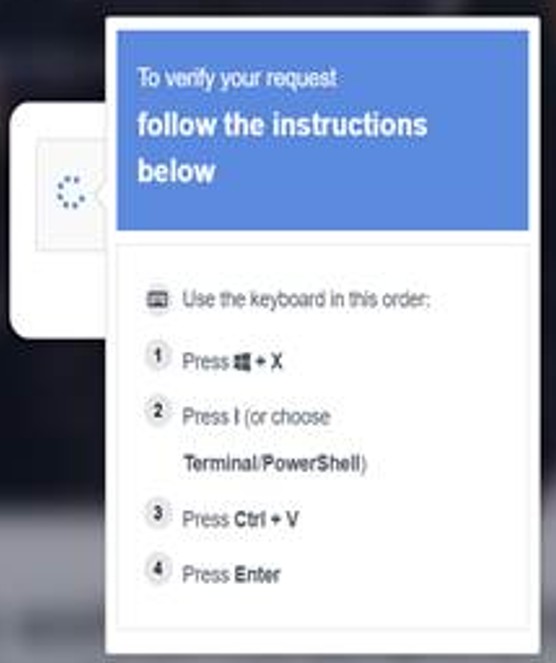
Example of a fake CAPTCHA verification page used in ClickFix malware attacks that instructs visitors to run PowerShell commands.
Guide overview
Purpose:
To explain how fake CAPTCHA malware works and provide practical steps to reduce the risk of it appearing on a WordPress website.
Structure:
Part 1 provides immediate actions if you encounter it.
Part 2 explains how it works and how layered protection reduces risk.
Outcome:
By the end of this guide, you should understand the mechanism behind fake CAPTCHA malware and the practical controls that reduce the likelihood of compromise.
Browse this guide
This guide explains how fake CAPTCHA malware works, what to do immediately if it appears, how it reaches WordPress websites, and which practical controls reduce the risk of compromise and reinfection.
Use the links below to jump to the sections most relevant to your situation.
- Quick actions if you see a fake CAPTCHA page
- Plain English explanation
- Why a CAPTCHA page asking you to run commands is malicious
- How fake CAPTCHA malware ends up on a WordPress website
- How to reduce the risk on WordPress
- Layered protection. Why no single security feature is enough
- When to contact IT support or your hosting provider
- Frequently asked questions
- Need help with something covered in this guide?
- Further Guidance and Support
Part 1. Quick actions if you see a fake CAPTCHA page
If you see a page that:
• Displays a message asking you to “verify you are human”
• Instructs you to press Windows + R
• Tells you to paste something into PowerShell
• Asks you to click Allow to continue
Do not follow the instructions on the page.
If it is your own website:
Do not interact with the fake prompt.
Take the website temporarily offline if possible.
Contact your hosting provider.
Restore the site from a known clean backup.
Change all WordPress administrator passwords.
Review installed plugins and remove anything unfamiliar.
Scan the site using a security plugin such as Wordfence.
Do not assume it is harmless. A fake CAPTCHA overlay is usually a symptom of a deeper compromise.
A legitimate CAPTCHA system will never ask you to open Windows Run, paste commands into PowerShell, or download software.
Part 2. Plain English explanation
A real CAPTCHA system is used to distinguish humans from automated bots.
Fake CAPTCHA and verification pages imitate that familiar security process to make the visitor more likely to trust what happens next. They can be used in different ways. Some redirect visitors to phishing pages, malware downloads or other destinations, while others instruct the visitor to perform actions on their own computer.
When the instructions ask the visitor to open Windows Run, PowerShell or another system tool and paste or execute a command, the technique is commonly referred to as a ClickFix attack. The attacker is persuading the person to execute the action themselves rather than relying on a conventional software exploit on the visitor’s device.
If the visitor follows those steps, they may unknowingly install malware on their own computer. This could lead to:
• Credential theft
• Remote access installation
• Browser session hijacking
• Further lateral compromise
Because the action is initiated by the visitor, the attack may get past some of the protections that would otherwise block an unsolicited download or executable. Endpoint protection, application controls and restrictions on scripts can still help reduce the risk.
Many infostealer malware families specifically target browser data. This includes saved passwords, authentication cookies, and active login sessions. If attackers obtain these session tokens, they may be able to access services such as email, cloud platforms, or business applications without needing the original password. In some cases this can even allow attackers to bypass multi factor authentication if the session is already trusted.
In May 2026, the Australian Signals Directorate’s Australian Cyber Security Centre published an advisory describing ClickFix activity that used compromised WordPress websites and fake verification prompts to distribute Vidar Stealer malware.
Vidar Stealer is an infostealer aimed primarily at Microsoft Windows users. It can target usernames, passwords, payment details, cryptocurrency wallets, browser history, multi factor authentication tokens and other sensitive information.
This reinforces the main point of this guide. A fake CAPTCHA or verification prompt that asks a visitor to open Windows Run, paste a command into PowerShell, or run a script is not a harmless website error. It should be treated as a security warning for both the website owner and the visitor.
Why a CAPTCHA page asking you to run commands is malicious
A legitimate CAPTCHA system is intended to check whether a visitor is human, using tasks such as clicking a checkbox or identifying images. The CAPTCHA itself should not require you to open Windows Run, paste commands into PowerShell, execute scripts or install software on your computer.
It is also important not to assume that a verification page is safe simply because part of it appears genuine. Attackers can imitate familiar security services and may even incorporate legitimate CAPTCHA components into a malicious page.
In August 2026, security researchers at OX Security identified fake Cloudflare verification pages being delivered through npm packages and npm mirror services. npm is a widely used online registry for JavaScript software packages. Mirror services copy packages from that registry so they can be made available through other servers or domains. Some of these services can also display individual files from a package directly in a web browser.
In this campaign, attackers placed malicious HTML inside npm packages. When some mirror services copied those packages, the HTML could be opened through a legitimate mirror domain and displayed as a fake Cloudflare verification page. The page could then use malicious JavaScript to redirect the visitor elsewhere.
A familiar or legitimate-looking web address should therefore not be treated as proof that everything displayed through it is trustworthy. Attackers can abuse legitimate online services to host content, store information or redirect visitors.
The same applies to HTTPS and website security certificates. HTTPS helps the browser establish an authenticated and encrypted connection to the domain shown in the address bar, but it does not guarantee that every page, script, file or destination associated with that domain is safe.
A familiar domain, valid HTTPS connection or genuine CAPTCHA component should therefore not override warning signs such as unexpected instructions to run commands or software on your computer.
For a fuller explanation of what HTTPS and website certificates do and do not establish, see:
What Does a Website Security Certificate Actually Prove?
If a website asks you to open Windows Run, PowerShell or another system tool and paste or execute commands in order to “verify you are human”, treat the page as malicious and do not follow those instructions.
When a fake verification page persuades the visitor to run attacker supplied commands themselves, the technique is commonly referred to as a ClickFix attack.
How fake CAPTCHA malware ends up on a WordPress website
When a fake CAPTCHA or verification page is being served from or injected into a compromised WordPress website, the initial weakness may be in the website itself, the hosting environment or the accounts used to administer it.
Common causes include:
• Outdated WordPress core, themes, or plugins
• Vulnerable or poorly coded plugins
• Compromised administrator credentials
• Weak passwords
• No multi factor authentication
• No Web Application Firewall
• Insecure file permissions
• Inadequate hosting level security
• Incorrect file permissions such as 0777 on plugin directories, allowing unauthorised file uploads.
In most managed hosting environments, default directory permissions are 0755 and files are 0644. WordPress does not normally create plugin directories with 0777 permissions.
If 0777 is observed, it is usually the result of a manual change, an insecure script, a migration error, or post-compromise alteration. Publicly writable directories significantly increase risk and should be corrected immediately.
Once an attacker gains access, they may inject malicious JavaScript into:
• Theme files
• Plugin files
• The database
• The header or footer of pages
This injected code then displays the fake verification overlay to visitors.
In many cases the underlying website itself continues to function normally. Pages, images, and navigation may appear completely unchanged. The only visible sign of compromise is the fake verification overlay presented to visitors when they first access the site.
How to reduce the risk on WordPress
No single control prevents every compromise. Risk is reduced through layered protection.
Practical measures include:
• Keep WordPress core, plugins, and themes updated.
• Enable automatic updates where appropriate.
• Remove unused plugins and themes.
• Use a properly configured security plugin such as Wordfence.
• Enable file change monitoring.
• Enforce strong administrator passwords.
• Enable multi factor authentication for all administrator accounts.
• Disable file editing from the WordPress dashboard.
• Use a Web Application Firewall such as Cloudflare.
• Review whether business devices can restrict the execution of unauthorised scripts and downloaded executables.
• Keep browsers and scripting engines updated as well as WordPress, plugins and themes.
• Maintain regular off site backups.
Maintain regular off-site backups stored independently from the hosting account. Backups stored only within the same compromised environment may be altered or deleted during an attack.
Ensure all related service accounts, including hosting control panel, FTP or SFTP, and email accounts, use strong, unique passwords and multi factor authentication where available.
Security should not depend on one plugin alone. It should combine update discipline, identity controls, firewall protection, and monitoring.
Layered protection. Why no single security feature is enough
A WordPress security plugin alone does not guarantee protection.
Cloudflare alone does not guarantee protection.
Strong passwords alone do not guarantee protection.
Security works when multiple controls operate together. This is part of a wider layered security approach, where different controls reduce risk at different points rather than relying on one feature alone:
• Firewall filtering
• Identity protection
• Reliable backup and recovery
• Monitoring and alerting
• Application hardening
The objective is risk reduction and early detection, not absolute immunity.
When to contact IT support or your hosting provider
Professional investigation may be appropriate if:
• You are unsure whether malicious code has been fully removed.
• The infection returns after cleanup.
• Administrative accounts appear to have been altered.
• File integrity monitoring shows repeated changes.
• You do not have a clean backup available.
• You do not know how the initial compromise occurred.
If your website is hosted with a managed hosting provider, contact them immediately. Many hosting companies can:
• Review server level logs
• Check for additional malicious files
• Scan the hosting account
• Help restore a clean snapshot
• Identify unusual access activity
In addition, all associated accounts should be reviewed and secured:
• WordPress administrator accounts
• FTP or SFTP accounts
• Hosting control panel accounts
• Database users
• Email accounts linked to the domain
All passwords should be changed to strong, unique passwords.
Multi factor authentication should be enabled wherever supported.
If possible, consider changing usernames for administrator level accounts.
A website compromise should be treated as a security incident, not just a technical fault. It is important to understand how the compromise occurred so that similar weaknesses are not repeated.
If you are uncertain about containment or root cause, it may be appropriate to seek assistance from an experienced web developer or website security specialist. While professional investigation can involve cost, it can also provide clarity, strengthen long term security, and prevent recurring incidents.
If you are currently experiencing this issue, early assistance is often better than delayed action.
Frequently Asked Questions About Fake CAPTCHA Malware
How can I tell if a CAPTCHA page is malicious?
A legitimate CAPTCHA will ask you to click a checkbox, identify images, or complete a puzzle.
It will never ask you to open Windows Run, paste commands into PowerShell, or execute code on your computer.
If a webpage asks you to do this, it is almost certainly malicious.
What is a ClickFix attack?
A ClickFix attack is a social engineering technique where a fake verification, warning or error message persuades the visitor to run attacker supplied commands on their own computer, often through Windows Run or PowerShell.
The command may then download or execute malware or perform other malicious actions.
Can a legitimate website become infected with this malware?
Yes. In many cases attackers compromise legitimate WordPress websites by exploiting vulnerabilities, weak passwords, or stolen administrator credentials.
The website itself may appear normal while displaying a malicious verification overlay to visitors.
What happens if someone follows the instructions on the fake CAPTCHA page?
Following the instructions may cause malicious code or software to be downloaded or executed on the device.
The eventual payload varies between attacks. It can include infostealers designed to obtain browser passwords, authentication cookies and other sensitive information, but ClickFix describes the delivery technique rather than one particular type of malware.
Can antivirus software stop this attack?
Sometimes. However, this attack relies on social engineering, meaning the user is tricked into executing the command themselves.
Because the command is executed by the user, traditional security tools may not always detect the initial stage of the attack.
How can WordPress website owners reduce the risk?
Practical steps include:
Keeping WordPress, plugins, and themes updated
Enabling multi factor authentication for administrator accounts
Removing unused plugins and themes
Using a Web Application Firewall such as Cloudflare
Monitoring file changes with a security plugin such as Wordfence
Maintaining reliable off site backups
Need help with something covered in this guide?
A guide can explain the issue and outline useful checks, but some situations need the actual device, account, service, website, network or supplier arrangement to be reviewed. Evening Computing can help review what is happening and advise on suitable next steps before changes are made.
Further Guidance and Support
This guide forms part of a broader layered security approach. For structured guidance on security and resilience planning, see our Security and Resilience page.
For information about practical implementation and ongoing support, you can review our IT services and local IT support coverage across London, Hertfordshire, and Essex.
Author
Elías Sánchez
IT Support Consultant
Evening Computing
This guide was prepared by Elías Sánchez with research and drafting assistance from AI tools. All technical content has been reviewed and adapted for clarity and accuracy.
Last reviewed
30 August 2026