
Microsoft 365 account compromise: lessons from a real incident and what to check
This guide is based on a real Microsoft 365 account compromise investigated by Evening Computing. The incident has been anonymised, but the sequence of events, investigation methods and practical lessons described here are based on what we actually encountered.
It should not be treated as a universal description of how every Microsoft 365 compromise will happen. Other incidents may involve different phishing techniques, authentication methods, applications, devices, permissions or attempts to access data. The evidence available and the appropriate response can therefore differ considerably from one case to another.
The purpose of this guide is to explain what happened in this particular case, how we investigated it, what we learned, and which checks and security measures may also be useful when reviewing other Microsoft 365 incidents.
Browse this guide
Use the links below to jump to the section most relevant to your question.
- If an account has been compromised, do these first
- Why changing the password may not be enough
- How device code phishing can use a real Microsoft sign-in page
- What made a real phishing message convincing
- What a Microsoft 365 administrator should investigate
- Why suspicious device registrations matter
- What mailbox and file logs can and cannot prove
- Why Teams, SharePoint and OneDrive access can look different after recovery
- How organisations can reduce the risk
- What not to assume after an incident
- Supporting references
- Related guides
- Further Guidance and Support
The message that started this incident
The example below is an anonymised reconstruction of the malicious email involved in the incident. Names, addresses and identifying details have been changed, but the structure and type of request reflect the message that was investigated.
In this case, the message formed part of a device-code phishing attack. It is included to show why the request could appear credible and to provide context for the investigation described in this guide. It represents one real attack method, not a template for how all Microsoft 365 compromises will look.
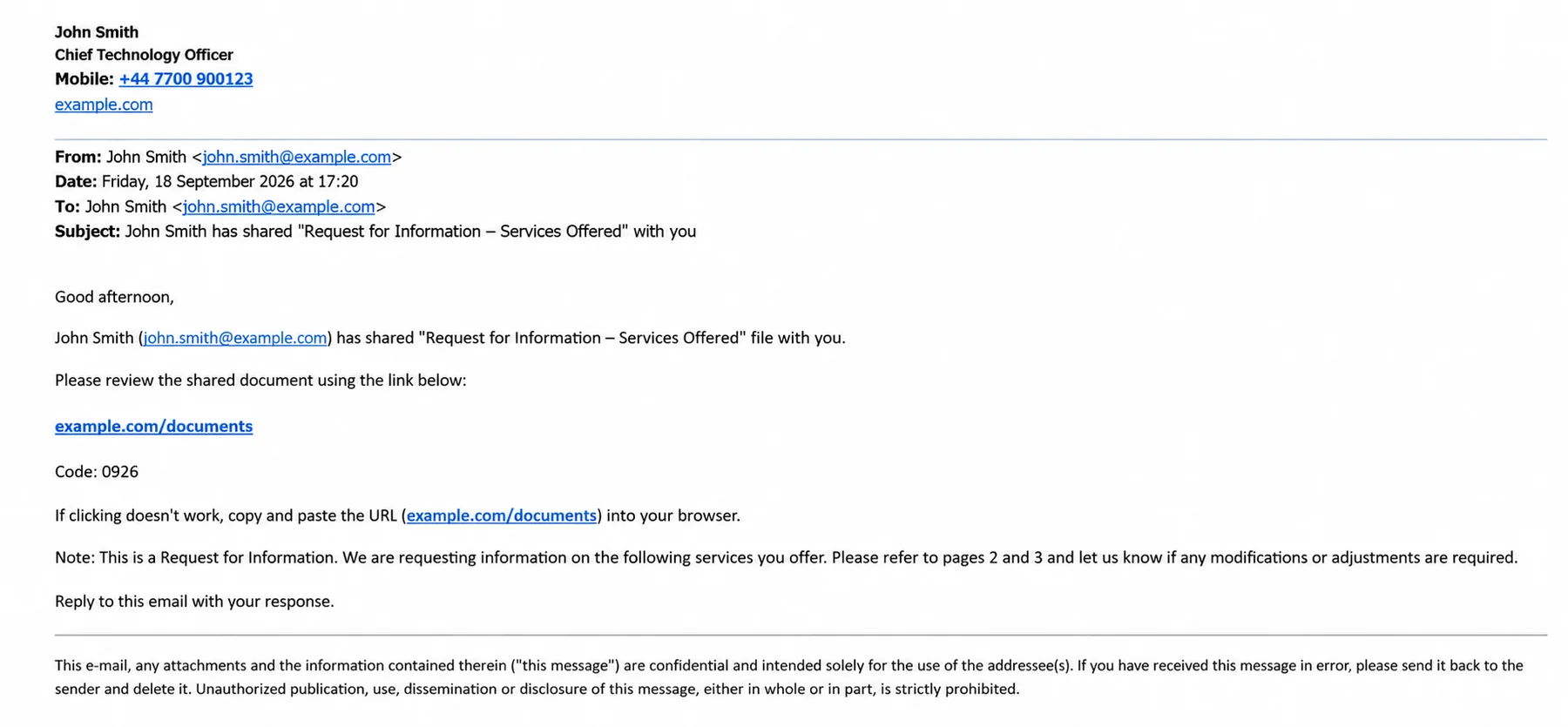
Anonymised example: the document-sharing message involved in the incident. The identifying details have been changed to protect the organisations and individuals concerned.
If an account has been compromised, do these first
The recommendations below are informed by this incident and by the controls relevant to the behaviour we observed. They should be assessed against the circumstances, configuration and business requirements of each organisation rather than applied automatically to every Microsoft 365 environment.
The first response should reduce the chance of further access without destroying the evidence needed to understand what happened. A person who has received the suspicious request and the administrator responsible for the tenant have different roles.
1. Stop interacting with the suspicious email, website or sign-in request. Do not enter another code, approve another MFA prompt or continue through the same link.
2. Contact your IT administrator or support provider using a telephone number, saved contact or other route you already know. Do not rely on contact details contained in the questionable message.
3. Preserve the original message and take screenshots of what you saw. Do not forward an active suspicious message to colleagues simply to ask what they think, because its links or attachments remain active.
4. If you administer the tenant and the compromise is credible, preserve the first evidence you need and contain the identity. Depending on the situation, this can include disabling or suspending the account, resetting the password, revoking sessions and refresh tokens, and reviewing authentication methods.
5. Export or record sign-in, audit, device and Defender incident information before deleting suspicious objects. Deletion may remove useful context such as registration times or object identifiers.
6. Once the identity is contained, investigate what the account could access before deciding that the incident is finished.
If an organisation uses Microsoft Defender for automatic attack disruption, check the incident activity before repeating containment steps. Microsoft may already have required the account to sign in again, revoked access or suspended the identity automatically. Record automated actions separately from administrator actions so the timeline remains clear.
Where credible token compromise is suspected, temporarily disabling or suspending the affected account can provide a stronger immediate containment boundary than session revocation alone.
Revoking sessions and refresh tokens does not necessarily make every access token that has already been issued unusable immediately.
Temporary disablement may therefore be appropriate while the initial evidence is preserved and the identity, devices and recent activity are investigated.
Why changing the password may not be enough
A password is one way of establishing an identity, but Microsoft 365 applications normally continue working through tokens after authentication. If an attacker has already obtained a valid access or refresh token, a password change on its own should not be assumed to end every active session.
This is why a Microsoft 365 compromise response normally includes both credential recovery and session recovery. The administrator should review the available session-revocation controls, authentication methods and recent sign-in activity rather than treating a password reset as a complete containment step.
Reset the password if compromise is credible and the account uses a password.
Revoke active sign-in sessions and refresh tokens using the controls available in the tenant.
Review passkeys, Microsoft Authenticator registrations, security keys and other authentication methods for anything unexpected.
After recovery, create a clean authentication boundary and verify that the person can sign in using only the intended methods.
Phishing-resistant authentication such as passkeys and FIDO2 security keys remains an important security control. It reduces several forms of credential phishing, but it does not make every sign-in transaction safe if the person is persuaded to approve a legitimate authentication process that they did not deliberately initiate.
How device code phishing can use a real Microsoft sign-in page
Device code authentication is a legitimate sign-in method. It is useful when the device or application being signed in cannot conveniently accept a username, password or other normal interaction. A television, printer, command-line tool or similar application may show a short code and ask the person to complete authentication on another device.
Device-code phishing is not primarily a conventional password-stealing attack. It is an attack against the authorisation process. The attacker starts a legitimate sign-in flow and persuades the target to approve it. The Microsoft sign-in page can genuinely belong to Microsoft, and the person may authenticate normally with a password, MFA, a passkey or a security key without directly giving the attacker their password.
The important question is therefore not only “Is this Microsoft page genuine?” Ask instead:
“Did I deliberately start this sign-in on a device or application that I recognise, and am I expecting to enter this code?”
If the answer is no, stop and verify the request through a separate trusted route.
A simplified device-code phishing path looks like this:
Attacker starts a device-code sign-in
↓
Attacker sends a lure and asks the target to complete the sign-in
↓
Target reaches a genuine Microsoft authentication page
↓
Target authenticates normally with the available password, MFA, passkey or security key
↓
Microsoft issues tokens to the session that originally started the device-code flow
↓
The attacker-controlled session can use the authorised access
Modern phishing platforms can automate much of this process. A malicious site can request a fresh device code from Microsoft, present it to the person and wait in the background for the legitimate Microsoft authentication to be completed. Once the person approves the request, the attacker-controlled session can receive the authorised access.
This is why device-code phishing can be unusually convincing. The Microsoft authentication itself can succeed. The problem is that the person may be authorising an attacker-initiated session rather than a device or application they intended to sign in.
A useful rule is: if a sign-in code has been supplied to you unexpectedly in an email, document, chat or website, stop and verify why you are being asked to use it. A code displayed by a device or application that you deliberately chose to sign in is a different situation.
What made a real phishing message convincing
A real incident investigated by Evening Computing involved a document-sharing message that looked like an ordinary business request. The public example on this page has been anonymised, but it preserves the structure that made the message plausible.
The message did not rely on an obvious password-stealing page. It used familiar business language, appeared to refer to a genuine organisation, sent the recipient to a separate website and included a code as part of the process. Microsoft Defender later identified the account compromise as device-code phishing.
Modern phishing-as-a-service platforms can also package much of the technical work for the people running a campaign. Microsoft has documented platforms that provide pre-built lures, hosting and redirect options, live device-code generation, token-management functions and AI-assisted targeting. This means a polished and technically sophisticated attack does not necessarily show that the individual sending the message built every part of the underlying infrastructure themselves.
The subject and wording described a plausible request for information rather than an obviously alarming security message.
The message appeared to come from a recognisable business identity.
It used a document-sharing pattern that people encounter legitimately in Microsoft 365, Google Workspace and other cloud services.
The greeting was generic and the visible To field contained the sender rather than the intended recipient, which were useful reasons to question it.
It directed the recipient through an external site rather than simply delivering the expected document.
It supplied a code as part of the process, which should trigger additional scrutiny when the person did not deliberately start an authentication flow.
The retained evidence confirms that device-code phishing was the compromise mechanism. It does not independently establish that the four-digit value visible in the original email was itself the OAuth device code, so the visible number should not be treated as proof of that specific technical step.
The broader lesson is more important than any single visual clue: recognising the sender, seeing a professional-looking message or reaching a genuine website does not prove that the requested action is safe. Unexpected changes in the normal way of working deserve independent verification.
What a Microsoft 365 administrator should investigate
Containment answers the immediate question of stopping access. Investigation answers the different question of what the attacker was able to do and whether any persistence or additional access was created. The available Microsoft 365 licences and logging determine how much evidence can be reviewed.
Microsoft Entra interactive and non-interactive sign-ins, including time, IP address, application, authentication protocol, Original transfer method, device information, risk and Conditional Access results. Original transfer method can help identify later token activity that originated from an earlier device-code flow even when the later activity no longer appears simply as device-code authentication.
Entra audit activity for account state changes, authentication methods, device registrations, application consent, service principals, role changes and other identity events.
Microsoft Defender incidents and alerts, including any automated Attack Disruption actions.
The person’s registered or joined devices, with attention to clusters created within seconds or minutes of the suspicious authentication.
Exchange mailbox forwarding, delegation, inbox rules including hidden rules, and mail-flow connectors.
Exchange and Purview audit records for mailbox access, SharePoint and OneDrive activity, file downloads and application activity.
Enterprise applications and OAuth integrations that can read or change organisational information.
Administrative roles and group-based entitlements that may have changed or that affect recovery.
Teams, private-channel, SharePoint, OneDrive and business-application access after the identity is recovered.
The investigation should record what is confirmed, what is not confirmed and what remains uncertain. Statements such as “we have not identified evidence of bulk mailbox synchronisation” are more defensible than absolute claims such as “nothing was accessed” when the available evidence cannot prove that.
Why suspicious device registrations matter
When an attacker gains access to a Microsoft 365 account, keeping that access can be just as important as gaining it in the first place. One way an attacker may try to do this is by registering a device identity against the compromised account.
A legitimate Microsoft Entra registered or joined device can receive a Primary Refresh Token, or PRT. In normal use, this helps the device and its applications continue authenticating to Microsoft services without asking the person to enter their username, password and MFA approval every time another access token is needed.
That behaviour is useful on a legitimate device. If an attacker can register a device they control, however, the same mechanism may provide another way of maintaining access to the compromised identity.
A simplified path looks like this:
Attacker gains access through device-code phishing
↓
Attacker registers an additional device identity
↓
Microsoft Entra may issue authentication tokens associated with that device
↓
The attacker may gain a longer-lasting foothold in the account
Microsoft documented this behaviour in September 2026 in its analysis of the EvilTokens device-code phishing platform. In some compromises Microsoft observed, attackers registered new devices within about ten minutes of the initial breach specifically to generate a Primary Refresh Token for longer-term persistence. Microsoft Defender also categorises device registration following anomalous device-code authentication as a Persistence technique.
This does not prove that the incident described in this guide involved EvilTokens. It does, however, provide a documented example of why unexpected device registrations appearing immediately after device-code phishing deserve careful investigation.
In the anonymised incident behind this guide, more than 20 new Windows device objects were created within approximately one minute during the compromise window. The affected person normally used Apple devices, making the cluster particularly unusual.
The reasonable interpretation is not that the attacker necessarily controlled more than 20 separate physical computers. The registrations were more likely attempts to create one or more device identities or footholds after the initial device-code authentication.
What could a persistent foothold allow an attacker to do?
If an attacker successfully establishes this type of persistent access, it may allow them to continue using the compromised Microsoft 365 identity without repeating the original phishing step.
Depending on the permissions available to the account and the authentication tokens or device identity obtained, the attacker might be able to access Microsoft 365 services, inspect information through Microsoft Graph, access mailbox or other organisational data, send further phishing messages, or attempt to extend access to other accounts or resources.
These are possible consequences of persistence, not proof of what happened in a particular incident.
Device registrations or authentication tokens alone do not establish which services or data were subsequently accessed. That needs to be determined from the surrounding sign-in, Entra audit, Exchange and Purview audit, mailbox and Microsoft Defender evidence.
A Microsoft Entra registered device is not automatically Intune enrolled, compliant, company-owned, security-hardened or administrator-approved. Registration establishes a device identity. Device management, compliance and the Conditional Access rules that determine what the device may actually access are separate controls.
Those registrations therefore tell us something important about what the attacker may have been attempting to establish, but they do not by themselves prove what the attacker subsequently succeeded in doing.
During an investigation, preserve the device object names, IDs, operating-system information, join or registration type, management state and creation times. Where a device identity is considered suspicious, disable it after preserving the necessary evidence rather than immediately deleting it. Disabling the device prevents it from continuing to authenticate and invalidates its Primary Refresh Token and refresh tokens.
Deletion can follow later once the device record is no longer required for the investigation and any management dependencies have been checked.
What mailbox and file logs can and cannot prove
Cloud audit records are valuable, but individual events need context. A successful sign-in shows that authentication succeeded. It does not by itself show that email was read or files were downloaded. A file-download event shows that a download operation was recorded, but the application and session still need to be attributed.
This matters because legitimate business applications, backup products, security tools and AI integrations can generate substantial Microsoft 365 activity.
| Observation | What it can show | What it does not prove |
| Successful Entra sign-in | A session or token was issued. | That mailbox messages or files were read. |
| Microsoft Graph sign-in | The session accessed Microsoft Graph as a resource. | Which Graph endpoint or organisational data was accessed. |
| MailItemsAccessed Bind | Specific mailbox items were accessed in that audit context. | A bulk mailbox download. |
| MailItemsAccessed Sync | Mailbox content was synchronised in that context. | That every message was exposed unless the synchronised scope is established. |
| FileDownloaded | A file-download operation was recorded. | That the attacker performed it; check application, IP, user agent, token and timing. |
| New device registration | The identity registered or joined a device object. | Who physically controlled a device without corroborating incident evidence. |
In the incident used to develop this guide, a set of file-download events initially required investigation. The application identity, prior usage and supporting audit evidence showed that the downloads were performed by an existing authorised integration rather than by the attacker, and Microsoft independently reached the same conclusion. That did not make the integration itself automatically risk-free; it remained a separate data-governance question.
Why Teams, SharePoint and OneDrive access can look different after recovery
Re-enabling an account restores the ability to authenticate, but it should not be assumed that every Microsoft 365 service will immediately return to exactly the same state.
Microsoft documents that when an account is disabled for sign-in, it can be removed from its existing Teams memberships. After the account is re-enabled, ordinary Team memberships may take 24 to 48 hours to be restored automatically.
Private channels behave differently. Microsoft states that private-channel membership is not restored automatically after the account is re-enabled, so those memberships may need to be added again.
In the incident behind this guide, normal Team memberships largely returned after the account was re-enabled, while private-channel memberships and associated roles had to be reconstructed and restored separately. That was a recovery consequence of account containment, not evidence that the attacker had removed those permissions.
Check parent Team membership and private-channel membership separately.
For private channels, manage membership through Teams rather than trying to reconstruct the channel by changing the associated SharePoint site permissions directly.
Confirm SharePoint and OneDrive access online before resetting a local sync client. If the browser can open the library, a remaining Finder or File Explorer problem may be local sync state rather than a cloud permission failure.
Verify Team or Microsoft 365 Group creation rights through the actual group-creation policy or security group. Do not grant unrelated administrator roles simply to solve a creation problem.
Microsoft 365 service behaviour changes over time, so current Microsoft documentation should be checked during an incident rather than treating one previous recovery as a permanent rule.
How organisations can reduce the risk
There is no single setting that makes account compromise impossible. A stronger position combines identity controls, monitoring, email and web protection, device security, application governance, and people who know when to question an unexpected authentication request.
A useful layered model is:
Block unnecessary authentication flows → control device registration and join → require an appropriate device-management or compliance signal → protect supported tokens.
Each layer addresses a different part of the attack.
Review whether device-code flow is actually required. Microsoft recommends blocking it wherever possible and allowing it only for documented use cases that genuinely need it. Sign-in-risk policies and blocks on legacy authentication remain useful, but neither should be treated as a substitute for restricting device-code flow itself.
Test Conditional Access changes before broad enforcement. Use Report-only mode where available, review legitimate dependencies and protect emergency or break-glass access from accidental lockout.
Keep device-code exceptions narrow. Some Teams Rooms, Teams phones, command-line tools or other specialised systems may legitimately require device-code authentication. Where an exception is required, scope it to the specific account, device type or documented workflow rather than leaving device-code flow available to ordinary users unnecessarily.
Require appropriate authentication when devices are registered or joined. Where licensing and tenant design support it, review the Microsoft Entra controls for registering or joining devices and require MFA or an appropriate authentication strength. Successful Device Registration Service activity that was not subject to the expected policy should be investigated.
Review who is allowed to join devices. Device registration and device join are different controls. Personal-device registration may be required for BYOD or Intune workflows, while ordinary staff may not need permission to independently join corporate devices. The organisation’s device-management model should determine the appropriate setting.
Require compliant devices where the operating model supports it. A device existing in Microsoft Entra does not mean that it meets the organisation’s security requirements. Conditional Access can require a managed device to satisfy the relevant compliance policy before protected resources are made available.
Consider Token Protection for supported users, applications and platforms. Token Protection can add another layer by requiring supported sign-in session tokens to remain cryptographically bound to the device. It should be piloted for compatibility and treated as defence in depth rather than as a replacement for device-code restrictions, device compliance or secure registration.
Continue to use MFA and, where appropriate, phishing-resistant methods such as passkeys or FIDO2 security keys. These remain important controls against credential theft, but the person still needs to understand what sign-in or authorisation request they are approving.
Use sign-in risk and Microsoft Defender detections where licensing supports them. Review risky sign-ins and relevant alerts rather than relying only on a person recognising the attack themselves.
Apply least privilege and review third-party integrations. Everyday users and administrators should have only the access they require. OAuth and other integrations should be reviewed periodically to confirm ownership, permissions, tenant-wide consent and continued business need.
Review device identities throughout their lifecycle. Stale, disabled, unmanaged and non-compliant devices should be reviewed periodically and removed deliberately after ownership, management and evidence requirements have been checked.
Teach staff to verify unexpected changes in the normal authentication process. Document-sharing requests, supplied sign-in codes, unfamiliar approval prompts and unusual changes to a normal business process should be verified through a separate trusted route.
Keep the incident-response process documented so that essential evidence is preserved before suspicious objects are deleted or settings are changed.
This is not a permanent checklist. Microsoft 365 features, attacker techniques, licensing and organisational dependencies change over time. Security controls should be reviewed periodically and used together as part of a layered security approach rather than treated as a once-only configuration exercise.
What not to assume after an incident
Several common assumptions can make investigation or recovery less reliable. The safest approach is to separate what a log or interface actually proves from what seems likely at first glance.
Do not assume a genuine Microsoft sign-in page means the requested sign-in is safe. Ask whether the person deliberately started the authentication process.
Do not assume MFA or a passkey means an account cannot be compromised. Strong authentication protects the credential step, but the user can still be deceived into authorising the wrong transaction.
Do not assume a password reset invalidates every existing session or token.
Do not describe a group of device objects as confirmed physical computers unless the evidence supports that conclusion.
Do not assume that a Microsoft Entra registered device is automatically managed, compliant, company-owned or approved by the organisation. Device identity, management and compliance are separate states.
Do not assume every unfamiliar IP address reveals the attacker’s physical location. VPNs, cloud infrastructure and content-delivery networks can distort geolocation.
Do not assume every mailbox rule, application or file download appearing after an incident is malicious. Attribute the activity before classifying it.
Do not assume re-enabling the account restores every Teams, SharePoint, OneDrive or application entitlement automatically.
Do not close the incident simply because the person can sign in again. Containment, evidence review, service recovery and post-incident improvement are separate stages.
Supporting references
The following Microsoft documentation supports the mechanisms and administrative controls described in this guide. Product interfaces and recommendations can change, so these references should be rechecked when the guide is reviewed.
Microsoft identity platform and OAuth 2.0 device authorization grant flow
Microsoft Entra: Block authentication flows with Conditional Access
Microsoft Entra: Authentication flows as a Conditional Access condition
Microsoft Security Blog: Unmasking EvilTokens: Getting to the root of device code phishing
Microsoft Entra: Security operations for devices
Microsoft Entra: Understanding Primary Refresh Token (PRT)
Microsoft Teams: user does not see previously joined teams after an account is re-enabled
Microsoft Teams: Private channels
Microsoft Entra: Require MFA for device registration
Microsoft Entra: Manage device identities
Microsoft Entra: Token Protection in Conditional Access
Microsoft Entra: Restrict device code flow for Microsoft Teams devices with Conditional Access
These Evening Computing guides provide additional context on layered security and authentication methods.
Further Guidance and Support
This guide forms part of a broader layered security approach. For structured guidance on security and resilience planning, see our Security and Resilience page.
For information about practical implementation and ongoing support, you can review our IT services and local IT support coverage across London, Hertfordshire, and Essex.
Author
Elías Sánchez
IT Support Consultant
Evening Computing
This guide was prepared by Elías Sánchez with research and drafting assistance from AI tools. All technical content has been reviewed and adapted for clarity and accuracy.
Last reviewed
8 October 2026