
How to Improve WhatsApp Security
WhatsApp features, menu names and available controls can change over time. This guide focuses on security principles that should remain useful even where the application interface changes. Where a setting described below is not visible, check that WhatsApp and the device operating system are supported and updated, and review the current options available for that account and device.
Personal WhatsApp messages and calls are protected with end-to-end encryption by default. This helps protect their contents while they travel between devices, but it does not decide whether the sender still controls their account, whether another device has been linked to it, or whether an attachment is safe to open.
A message can therefore be encrypted and still present a risk if it was sent from a compromised account, if someone was tricked into linking an unauthorised device, or if the message contains a malicious file.
This guide explains how account settings, phone number protection, device security, backups, linked devices and careful handling of messages work together to reduce those risks.
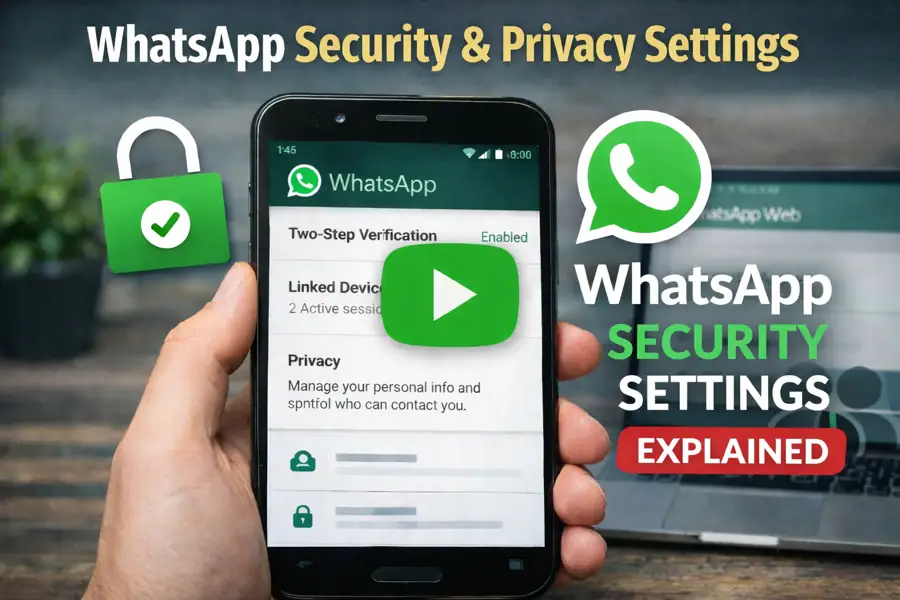
Visual Overview: WhatsApp Security Settings
This short video provides a visual overview of several WhatsApp security settings discussed in this guide, including privacy controls, two step verification, and linked device sessions.
The guide above contains the full written explanation and recommended configuration steps.
Browse this guide
Use the links below to jump to the sections most relevant to your situation.
- Why WhatsApp Accounts Are Targeted
- Enable Two-Step Verification and an Account Passkey
- Protect Your SIM Card
- Protect Your WhatsApp Backup
- Review WhatsApp Privacy Settings
- Use Chat Lock for Sensitive Conversations
- Use Advanced Chat Privacy for Sensitive Conversations
- Use Strict Account Settings
- Keep WhatsApp and Your Devices Updated
- Disable Automatic Media Downloads
- Review Linked Devices
- Use App Lock and Device Security
- Separate Business and Personal Use
- Be Aware of Social Engineering
- Why Familiar Details Are Not Proof That a Message Is Genuine
- Related WhatsApp Security Topics
- Related Guidance
- Summary
- Need help with something covered in this guide?
- Further Guidance and Support
Why WhatsApp Accounts Are Targeted
WhatsApp accounts are linked directly to phone numbers.
If an attacker gains control of a phone number through SIM swap fraud, social engineering, or interception of verification codes, they may attempt to activate the WhatsApp account on another device.
When this occurs, the legitimate user may see a message stating that the phone number has been registered on a new device.
Understanding this behaviour helps users recognise account takeover attempts quickly and respond before further access is gained.
If you ever see this message, we explain what it means and what actions to take in our guide:
Your Phone Number Was Registered with WhatsApp on a New Device
Enable Two-step Verification and an Account Passkey
When someone tries to register your telephone number with WhatsApp on another device, WhatsApp needs a way to check that the attempt is genuinely authorised.
Go to Settings, then Account, then Two-step verification.
Create a unique six-digit PIN that is not based on a birthday, repeated digits or a simple sequence. Add a recovery email address that you control and protect that email account with strong authentication.
Never share your WhatsApp registration code or two-step verification PIN. A genuine contact, support representative or mobile provider should not need you to disclose either code.
Create an Account Passkey Where Available
WhatsApp also supports passkeys for account access on compatible devices.
Go to Settings, then Account, then Passkeys, then Create passkey.
An account passkey is separate from the passkey that may be used to protect an encrypted chat backup. Treat it as an additional account control rather than a reason to disable two-step verification.
Because the passkey relies on the device and its credential manager, keep the device screen lock and the associated Apple or Google account protected.
Protect Your SIM Card
Your WhatsApp account is connected to your mobile telephone number. If your phone unexpectedly loses mobile service, the important question is whether the network is still routing calls and messages to your SIM or whether the number has been moved to another SIM or eSIM.
In a SIM swap or unauthorised number transfer, a mobile provider is persuaded to move a telephone number to a replacement SIM or eSIM controlled by someone else. That person may then receive SMS verification codes and attempt to register accounts connected to the number, including WhatsApp.
Ask your mobile provider what protection it offers for:
• SIM or eSIM replacement requests.
• Number porting or transfer requests.
• Changes to account contact details.
• An account-level security PIN or password.
A PIN placed on the physical SIM protects that particular SIM if it is removed from the phone. It does not by itself prevent someone from persuading the mobile provider to issue a replacement SIM. The mobile account PIN, porting restrictions and provider verification procedures are therefore separate protections.
If your phone unexpectedly loses mobile service and you have not requested a network or SIM change, contact the mobile provider from another trusted telephone. Also check for account change notifications and review WhatsApp for unfamiliar linked devices or registration warnings.
Protect Your WhatsApp Backup
When a phone is lost, replaced or reset, WhatsApp may need a separate copy of the chat history so that conversations can be restored. On Android, WhatsApp uses a Google Account for supported cloud backups. On iPhone, it uses iCloud.
Dropbox is not an official WhatsApp backup destination. An individual chat or manually copied file may be saved to Dropbox, but this is an export or archive rather than the normal backup used by WhatsApp’s documented restoration process.
WhatsApp protects personal messages and calls with end-to-end encryption while they are being exchanged. A cloud backup is a separate stored copy and therefore needs its own protection. Unless end-to-end encrypted backup is enabled, the supported cloud backup is not protected by WhatsApp’s end-to-end encryption.
Go to Settings, then Chats, then Chat backup, then End-to-end encrypted backup.
Choose How the Encrypted Backup Is Protected
Depending on the device and WhatsApp version, the available options may include a passkey, a password or a 64-digit encryption key.
For most users, a passkey is the most practical option where it is available. It allows the backup to be protected using the fingerprint, face recognition or screen lock already used on the device. The device lock and the recovery information for the associated Apple or Google account should therefore also be kept secure and current.
When using a password, create a strong and unique password and save it in a reputable password manager. Do not keep the only copy inside WhatsApp, in an unprotected note or solely on the phone being backed up.
The 64-digit encryption key provides another option, but it also places greater responsibility on the user. Select it only when the key can be stored securely and retrieved reliably from somewhere other than the phone.
If the required passkey, password or encryption key is unavailable after the phone is lost, replaced or reset, the encrypted backup may not be recoverable.
Check That the Backup Is Completing
After enabling the backup, check the date and time of the last successful backup. Select an automatic backup frequency that reflects how much recent conversation history you could reasonably afford to lose.
Before replacing, resetting or repairing a phone, create a fresh backup and confirm that it has completed. Also check that sufficient storage remains available in the Google Account or iCloud account.
Restoration normally requires the same telephone number and the same Google Account or iCloud account used when the backup was created. Keep those accounts protected with strong authentication and current recovery information.
Understand What the Backup Does Not Protect
End-to-end encrypted backup protects the confidentiality of the stored conversation history. It does not secure an unlocked phone, remove the need to protect the associated Apple or Google account, create a complete versioned archive or replace an appropriate records management system.
Important documents and business records received through WhatsApp should be stored separately in the appropriate managed file, document or records system.
Review WhatsApp Privacy Settings
Go to Settings, then Privacy.
Recommended stricter settings:
Last Seen set to Nobody
Online set to Same as last seen
Profile Photo set to My Contacts or My Contacts Except…
About set to My Contacts or My Contacts Except…
Groups set to My Contacts or My Contacts Except…
Silence Unknown Callers enabled
These settings reduce the amount of profile and availability information visible to people you do not know, limit who can add you directly to groups, and reduce disruption from unknown callers.
Security Code Change Notifications
Each end-to-end encrypted conversation has a security code. WhatsApp can notify you when that code changes.
A change does not automatically mean that an account has been compromised. It can occur when a contact changes phones, reinstalls WhatsApp or changes a linked device. For a particularly sensitive conversation, the notification can act as a prompt to confirm the contact’s identity through another trusted method.
Go to Settings, then Account, then Security notifications, and enable notifications on the device.
Use Chat Lock for Sensitive Conversations
WhatsApp includes a feature called Chat Lock which allows individual conversations to be protected using biometric authentication such as fingerprint or Face ID.
When Chat Lock is enabled:
• The selected conversation moves to a protected folder
• Notifications may hide message previews
• Access requires biometric verification
This feature is different from locking the WhatsApp application itself.
If the app is protected only with a device lock, anyone with access to the unlocked phone could still open individual conversations.
Chat Lock provides an additional layer of privacy by protecting specific chats even when the device is already unlocked.
Hidden chats can also be placed inside a Locked Chats folder, which keeps sensitive conversations separate from the main chat list.
Use Advanced Chat Privacy for Sensitive Conversations
Chat Lock controls who can open a conversation on your device. It does not control how another participant may move the conversation or its media outside WhatsApp.
Advanced Chat Privacy provides a different type of control. It can be enabled for an individual or group conversation where the information being discussed needs additional handling restrictions.
When enabled, it helps prevent participants from:
• Exporting the chat.
• Automatically saving media from the chat to their phones.
• Using messages from the chat with certain AI features.
Open the individual or group chat, select the contact or group name, then select Advanced Chat Privacy.
This setting should not be treated as complete prevention of copying. A participant can still read the information and may be able to reproduce it manually or capture it using another device. It is an additional privacy control, not a guarantee that information cannot leave the conversation.
Use Strict Account Settings
Most WhatsApp users face ordinary spam, scams and account takeover attempts. A smaller group of people may be targeted with more sophisticated attacks because of their work, public role or access to sensitive information.
Strict Account Settings is designed primarily for that higher risk situation. It applies a collection of more restrictive controls together rather than requiring each setting to be changed separately.
These protections include automatically blocking attachments and media from unknown senders, silencing calls from people you do not know, and restricting other settings that may reduce some WhatsApp functionality.
This can reduce exposure to unsolicited content, but it does not replace application updates, device security or careful handling of links and attachments.
Go to Settings, then Privacy, then Advanced, then Strict Account Settings.
Availability, exact menu wording and individual controls may vary by WhatsApp version, device and account, so the settings should be checked on the device being protected.
Keep WhatsApp and Your Devices Updated
Security problems do not always produce a visible error. An application can appear to work normally while containing a security weakness. Keeping WhatsApp, the operating system, browser and desktop applications supported and updated is important because available security fixes should be applied.
However, fully updated does not mean invulnerable. Complex applications and operating systems can contain vulnerabilities that have not yet been discovered, weaknesses for which an effective fix is not yet available, or faults that attackers may begin exploiting before every affected device can be protected.
WhatsApp published security fixes during 2026 for mobile media processing and for an attachment spoofing issue in WhatsApp for Windows. The Windows issue could have allowed a specially prepared file to appear as one type of document while running as an executable when opened. WhatsApp stated that it had not seen evidence that either of the listed 2026 issues had been exploited in the wild.
Enable automatic application updates where appropriate and regularly update:
• WhatsApp on the phone.
• WhatsApp Desktop on Windows or macOS.
• The web browser used for WhatsApp Web.
• The phone or computer operating system.
Updates reduce exposure to known vulnerabilities, but they do not make every received link, attachment, account or linked device trustworthy. Updating is therefore an important preventive layer rather than a guarantee that nothing harmful can reach WhatsApp or the device using it.
Disable Automatic Media Downloads
Go to Settings, then Storage and Data.
Disable automatic downloads for photos, videos, and documents.
Automatic download settings control whether incoming media is downloaded or saved without an individual decision. Turning them off reduces unnecessary downloading and storage of unsolicited files, but it does not make a file safe.
A malicious attachment can still cause harm if it is downloaded and opened manually. Treat the sender, reason for the message, file type and expected content as separate checks before opening it.
Review Linked Devices
Go to Settings, then Linked Devices.
Linking a device gives that device continuing access to the WhatsApp account. A scammer may ask you to share a device linking code or scan a QR code while pretending to verify an account, join a service or resolve a problem.
Do not share a device linking code or scan a WhatsApp linking QR code unless you personally started the process and recognise the device being connected. WhatsApp may show a warning when a linking request appears suspicious, but the warning should support the user’s decision rather than replace it.
A QR code can do more than open a website. In WhatsApp, it may authorise another device to access the account. Our guide, Are QR Codes Safe? How to Check Before You Continue, explains how to check the expected destination, action and context before scanning or approving a QR code.
Remove any session you do not recognise. Avoid leaving WhatsApp Web open on shared or public computers.
If you ever notice unfamiliar sessions listed in Linked Devices, it may indicate that someone has accessed your WhatsApp account through WhatsApp Web or another linked device.
Some account compromises occur when a WhatsApp Web session is opened without the user’s knowledge.
We explain how to review and remove suspicious sessions in our guide:
How to Check if Someone Is Using WhatsApp Web on Your Account
Use App Lock and Device Security
Enable biometric app lock within WhatsApp.
Also ensure:
Strong device unlock PIN
Automatic screen lock
Operating system updates installed promptly
Lock screen notification previews reviewed and restricted where messages may contain sensitive information.
Antivirus, browser reputation protection and other built-in security controls kept enabled on computers used with WhatsApp Desktop or WhatsApp Web.
Locking WhatsApp does not prevent message content from appearing in a device notification. Review the phone’s notification settings and hide message previews on the lock screen where other people may be able to see them.
App security depends on overall device security.
Separate Business and Personal Use
If WhatsApp is used for business communication:
Use a dedicated number where possible
Avoid reusing the number for financial authentication
Limit unnecessary public exposure
Separation reduces overall risk.
A message can appear to come from someone you know and still be unsafe. If their WhatsApp account or linked device has been compromised, an attacker may use the existing conversation and contact list to make a request appear familiar.
During a 2026 malware campaign, attackers used compromised WhatsApp accounts to send attachments with names resembling invoices, financial reports, bank statements, payment records and debt notices. Opening the files on a Windows computer could begin a multi-stage infection and eventually provide remote access to the device.
Treat an unexpected attachment as unverified even when it comes from a genuine contact. Confirm the request through a separate communication method before opening the file.
On Windows, do not open unexpected script or executable file types such as:
• .vbs or .vbe
• .js
• .ps1
• .bat or .cmd
• .exe
• Unexpected installers such as .msi
Why Familiar Details Are Not Proof That a Message Is Genuine
An unexpected message may appear inside an existing conversation, display the correct contact name and profile photograph, and contain a file with an ordinary name such as Invoice, Account Statement or Payment Details.
The practical question is not only whether you recognise the account. You also need to decide whether the person genuinely intended to send that exact file or request.
WhatsApp can show which account delivered the message, but it cannot guarantee that the usual owner was controlling the account at that moment. If the account or one of its linked devices has been compromised, an attacker can send messages from the familiar account to people who already trust it.
A file name and icon are also presentation details. They tell you how the application or operating system is displaying the file, but they do not independently verify what the file contains or what it will do when opened.
For an unexpected attachment or sensitive request, verify it through a separate route that was already known to be genuine. Call a telephone number you already have, start a new conversation through an established contact method, or speak to the person directly. Do not rely on a telephone number, website, QR code or contact information supplied only within the suspicious message.
Apply the same check to requests involving money, changed payment details, verification codes, passwords or account recovery information. For business payment changes, use the organisation’s established approval and verification process before acting.
A familiar sender, conversation, file name or icon provides context, but it is not proof that the message or file is safe.
This is an example of layered security in practice. No single clue, setting or security product can confirm that a message is safe. Account protection, device security, software updates, careful handling of files and independent verification reduce different parts of the risk.
If something still goes wrong, the wider security model also needs containment and recovery. That may mean removing an unauthorised linked device, regaining control of the telephone number, securing the associated email or cloud account, checking an affected computer, restoring information where necessary and reviewing how the incident occurred.
Our layered security guide explains his wider model as:
Prevent → Detect → Contain → Recover → Learn → Improvet
Several situations that resemble account compromise are explained in more detail in the following guides:
How to Check if Someone Is Using WhatsApp Web on Your Account
How to Check if Your WhatsApp Account Has Been Hacked
Your Phone Number Was Registered with WhatsApp on a New Device
WhatsApp Verification Code Scam Explained
Why Someone Can Add You to WhatsApp Groups Without Permission
If your concern extends beyond messaging security, see our guide on protecting mobile phones and sensitive data if stolen.
External Research and Official Guidance
For further technical detail, the following official guidance and original security research provide additional information about the incidents, vulnerabilities and product changes behind these recommendations.
WhatsApp Security Advisories 2026, for the official mobile media processing and Windows attachment spoofing advisories.
Microsoft Security Blog: WhatsApp malware campaign delivers VBScript and MSI backdoors, for the technical infection chain and mitigation guidance.
Kaspersky: New campaign spreading malware via WhatsApp, for the compromised account distribution method and misleading business document names.
Meta: Fighting Scammers and Protecting People With New Technology and Partnerships, for the official explanation of WhatsApp device linking scams involving QR codes and linking codes. Meta describes scams in which victims are asked to scan a QR code or enter a code that links the attacker’s device to their account.
NCSC: Messaging App Targeting, for UK guidance covering malicious links, QR codes, verification codes and unauthorised linked devices.
Summary
WhatsApp security depends on layered protection. End-to-end encryption protects the contents of personal messages and calls, but it does not prove that the usual owner still controls an account, that a received file is safe, or that a device linking request is genuine.
Protect the account and telephone number with two-step verification, an account passkey where available, mobile provider security controls and regular linked device reviews. Keep WhatsApp, the operating system, browsers and computers used with WhatsApp updated.
Backups should be protected separately from live messages. Enable end-to-end encrypted backup, choose a recovery method that can be retained and confirm that backups are completing successfully. An exported chat saved to Dropbox or another storage service is an archive rather than a normal restorable WhatsApp backup.
Unexpected attachments, QR code linking requests and requests involving money, passwords, verification codes or changed payment details should be confirmed through a separate communication route already known to be genuine.
No single setting, familiar sender, security product or warning is sufficient on its own.
The same principle applies to recovery. Good WhatsApp security is not only about trying to prevent account takeover or malicious messages. It also means knowing how to regain control of the account or telephone number, remove unauthorised linked devices, recover protected chat history where appropriate, and respond if a connected computer or account has also been affected.
Prevent where practical. Detect unusual activity. Contain unauthorised access. Recover what matters. Learn from what happened and improve the controls.
Need help with something covered in this guide?
A guide can explain the issue and outline useful checks, but some situations need the actual device, account, service, website, network or supplier arrangement to be reviewed. Evening Computing can help review what is happening and advise on suitable next steps before changes are made.
Further Guidance and Support
This guide forms part of a broader layered security approach. For structured guidance on security and resilience planning, see our Security and Resilience page.
For information about practical implementation and ongoing support, you can review our IT services and local IT support coverage across London, Hertfordshire, and Essex.
Author
Elías Sánchez
IT Support Consultant
Evening Computing
This guide was prepared by Elías Sánchez with research and drafting assistance from AI tools. All technical content has been reviewed and adapted for clarity and accuracy.
Last reviewed
17 August 2026